# Logging into Verofy® App
To log in to the Verofy® App, select the App on your device to get started.
1. Enter your mobile number on screen, and hit **Continue**.
[](https://verofy-2-knowledge-base-public.s3.amazonaws.com/uploads/images/gallery/2025-07/image-15.png)
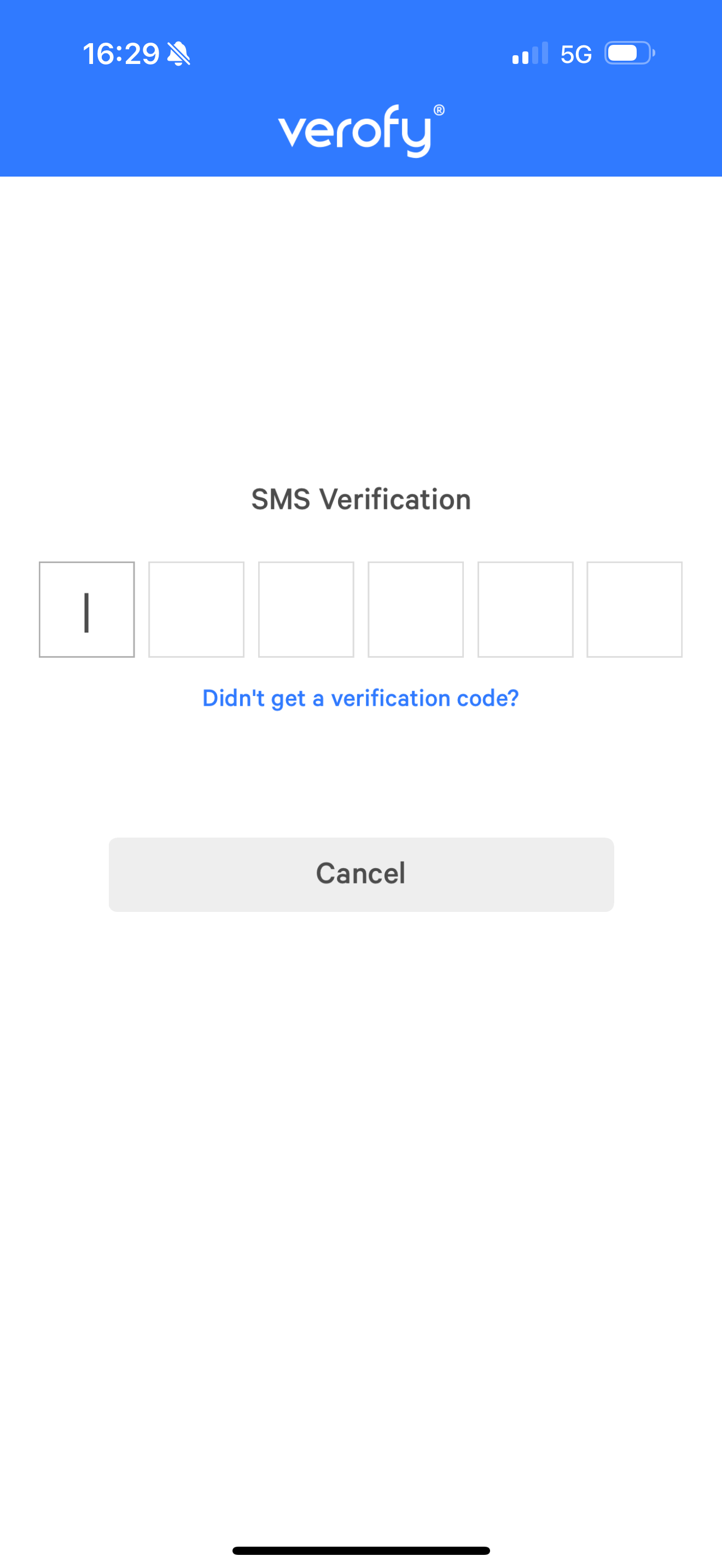
2. You'll be sent a 6 digit verification code to your **phone**. When this is received, enter this on screen to verify it's you logging in. If you need to go back to the mobile number page, you can navigate back here by pressing **Cancel**. If you don't receive a verification code, you can request this to be re-sent using the **Didn't get a verification code?** button.
[](https://verofy-2-knowledge-base-public.s3.amazonaws.com/uploads/images/gallery/2025-07/image-21.png)
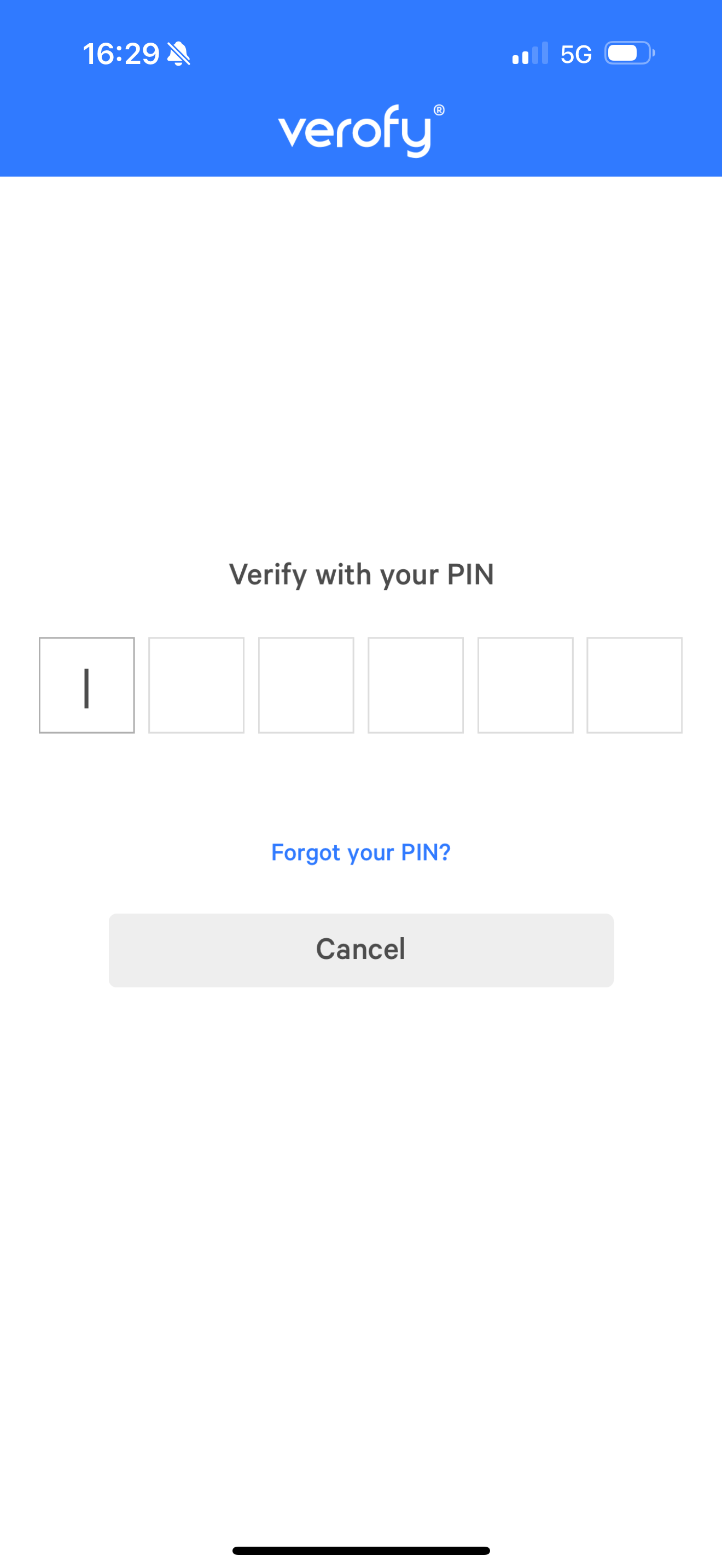
3. Once you've verified your mobile number successfully by entering the verification code, you'll need to enter your six digit PIN to complete 2 factor authentication (2FA). This helps us know it's really you when logging in. If you've previously set up Face or Touch ID on your mobile device, you'll be prompted for this instead of being asked to enter your PIN.
[](https://verofy-2-knowledge-base-public.s3.amazonaws.com/uploads/images/gallery/2025-07/image-22.png)
If you have forgotten your PIN, you can reset this by clicking **Forgot your PIN?**.
Instructions on the PIN reset process can be found **[here.](https://verofy.support/books/access-app/page/reset-your-pin-through-verofy-app)**
4. Your PIN/2FA will be checked and if all details are entered correctly, you'll be logged in and will see the Verofy® App dashboard. See our **[Navigating Verofy® App ](https://verofy.support/books/navigating-verofy-app)**pages to learn more about where to locate information.