# Reset your PIN through Verofy® Cloud

If you've forgotten your PIN and need to reset this, you can do this through Verofy® Cloud.

To reset your PIN through Verofy® Cloud, head to [https://go.verofy.com/pin-reset](https://go.verofy.com/pin-reset) or click the **Forgot your PIN?** button during the login process.

![image.png](https://verofy-2-knowledge-base-public.s3.amazonaws.com/uploads/images/gallery/2025-11/scaled-1680-/mKqimage.png)

<div class="pointer-container" id="bkmrk-%C2%A0"><div class="pointer anim is-page-editable"><svg class="svg-icon" data-icon="link" role="presentation" viewbox="0 0 24 24" xmlns="http://www.w3.org/2000/svg"></svg><div class="input-group inline block"> <button class="button outline icon" data-clipboard-target="#pointer-url" title="Copy Link" type="button"><svg class="svg-icon" data-icon="copy" role="presentation" viewbox="0 0 24 24" xmlns="http://www.w3.org/2000/svg"></svg></button></div><svg class="svg-icon" data-icon="edit" role="presentation" viewbox="0 0 24 24" xmlns="http://www.w3.org/2000/svg"></svg></div></div>1. You'll need to enter your mobile number to receive a verification code. Enter your mobile number and hit ****Submit.**** ![image.png](https://verofy-2-knowledge-base-public.s3.amazonaws.com/uploads/images/gallery/2024-05/scaled-1680-/89dimage.png)
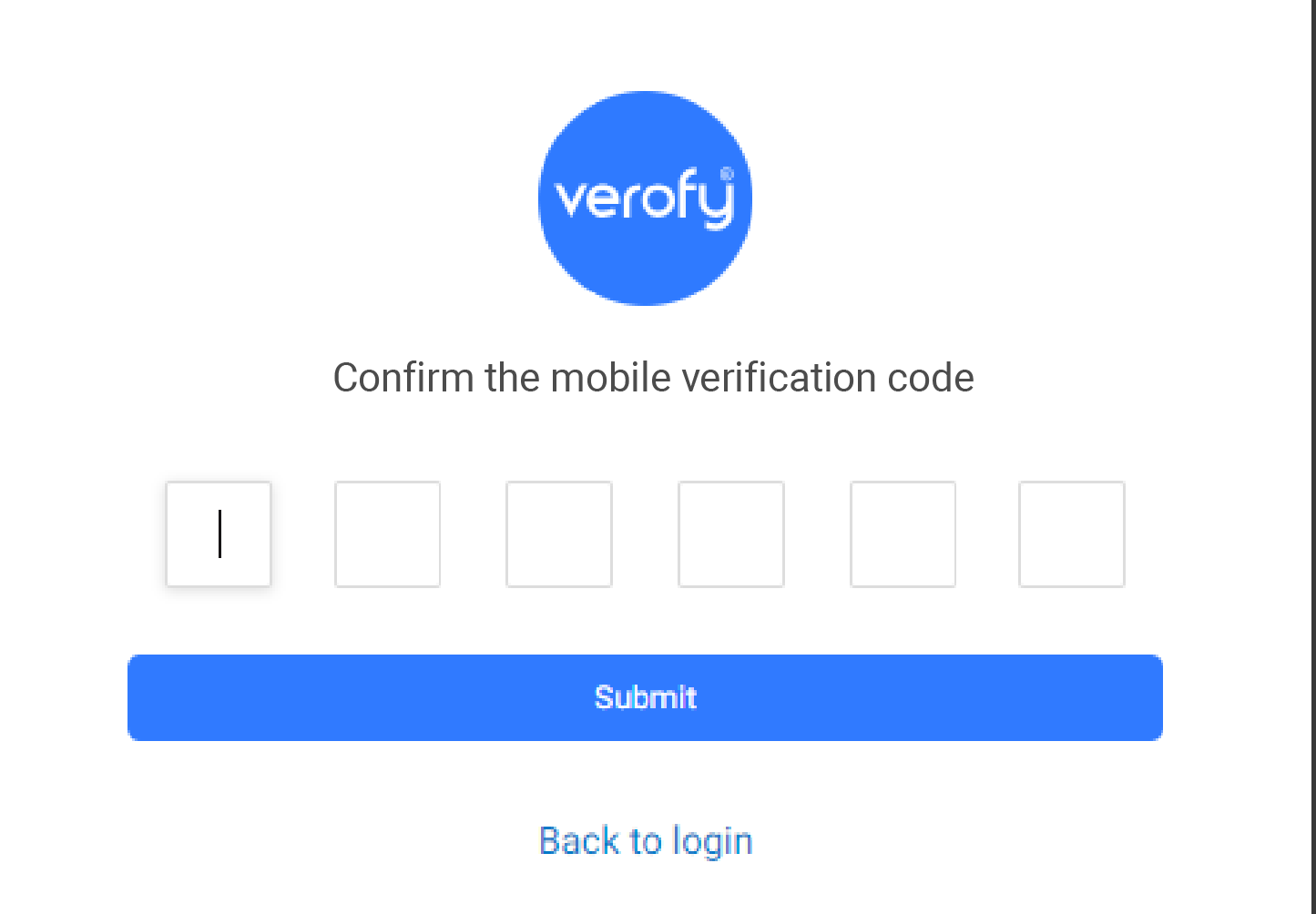
2. After entering your mobile number, you'll receive the 6 digit verification code to your **phone**. Enter it into the page to continue with the PIN reset. Once you've entered, hit **Submit.**   
    ![image.png](https://verofy-2-knowledge-base-public.s3.amazonaws.com/uploads/images/gallery/2024-05/scaled-1680-/85Bimage.png)
3. To complete two factor authentication, you'll then receive a verification code to your **email address**. You'll need to enter this to continue with the PIN reset process. Remember to check your spam/junk folder in case the verification code lands there. The email will come from <no-reply@Verofy.support> .   
      
    ![image.png](https://verofy-2-knowledge-base-public.s3.amazonaws.com/uploads/images/gallery/2024-05/scaled-1680-/MW6image.png)
    
    ![image.png](https://verofy-2-knowledge-base-public.s3.amazonaws.com/uploads/images/gallery/2025-10/scaled-1680-/2gtimage.png)

1. Once the email verification code is entered, you'll be prompted to enter a new 6 digit PIN number. Type this in and hit **Submit.**   
      
    ![image.png](https://verofy-2-knowledge-base-public.s3.amazonaws.com/uploads/images/gallery/2024-05/scaled-1680-/ifyimage.png)
    
    If the PIN you choose is accepted, you'll see the success message at the top right of the screen.  
    ![image.png](https://verofy-2-knowledge-base-public.s3.amazonaws.com/uploads/images/gallery/2024-05/scaled-1680-/So4image.png)
    
    If the PIN you choose is <span style="text-decoration: underline;">**not**</span> accepted, you'll see the error message below. The system doesn't allow for sequential numbers to be used, so PINs like **<span style="color: rgb(224, 62, 45);">111111</span>**, **<span style="color: rgb(224, 62, 45);">123456 </span>**or **<span style="color: rgb(224, 62, 45);">12</span>**7680 can't be accepted. If you get this error message, you'll need to try a different PIN. If you're struggling to choose a PIN that can be accepted, you can call or message the support team for help.   
    ![image.png](https://verofy-2-knowledge-base-public.s3.amazonaws.com/uploads/images/gallery/2024-05/scaled-1680-/ZqKimage.png)
2. Once the PIN is updated, you'll be directed back to the login page. You should now be able to log in using the new PIN you have set. If you need help with the login process, visit the **[Logging into Verofy® Cloud](https://verofy.support/books/access-verofy-cloud/page/logging-into-verofy-cloud)** page. ![image.png](https://verofy-2-knowledge-base-public.s3.amazonaws.com/uploads/images/gallery/2024-05/scaled-1680-/7fmimage.png)

If you're struggling to reset your PIN, **[get in touch with us.](https://verofy.support/shelves/getting-in-touch)**