# Adjusting the display settings on your Verofy® Move
If you need to adjust the brightness, font size or display size on your Verofy® Move, we've got you covered!
Head to the **Settings** menu from the main menu screen and select the **Display Settings** option.
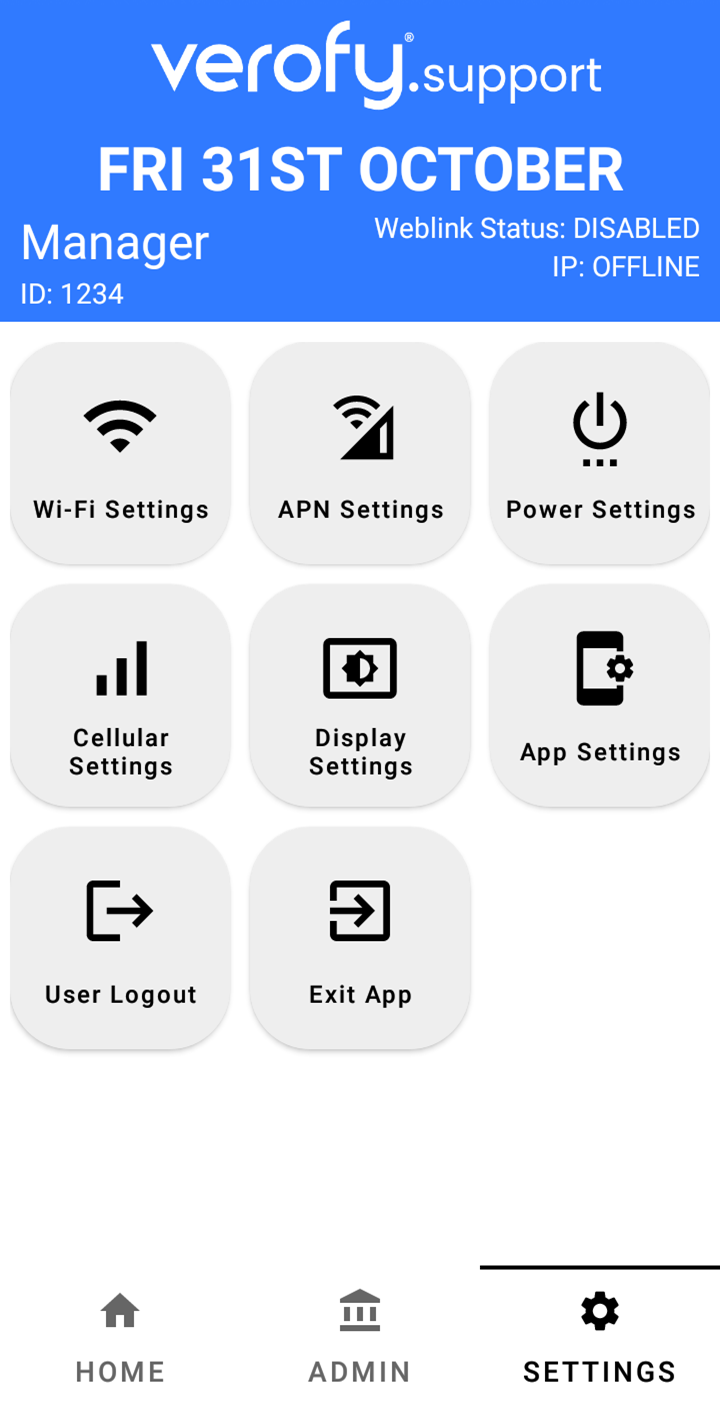
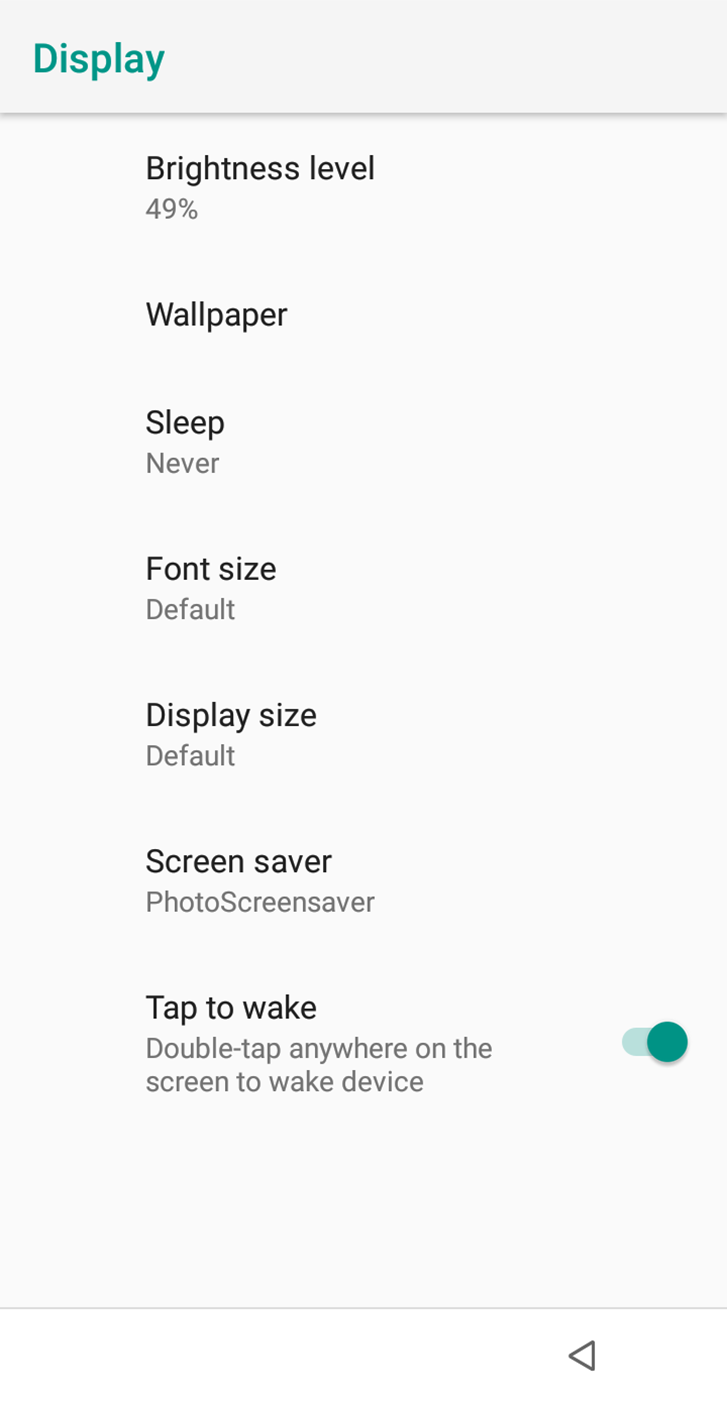
The preset display settings will look like this - you can click into **Advanced** to see more settings.
**Adjusting the brightness level**
To adjust the brightness of the Verofy® Move screen, select the **Brightness level** option, and move the slider to adjust the brightness to your preferred level. Select the triangle at the bottom right of the screen to return to the Settings menu once you're done.

**Adjusting the font size**
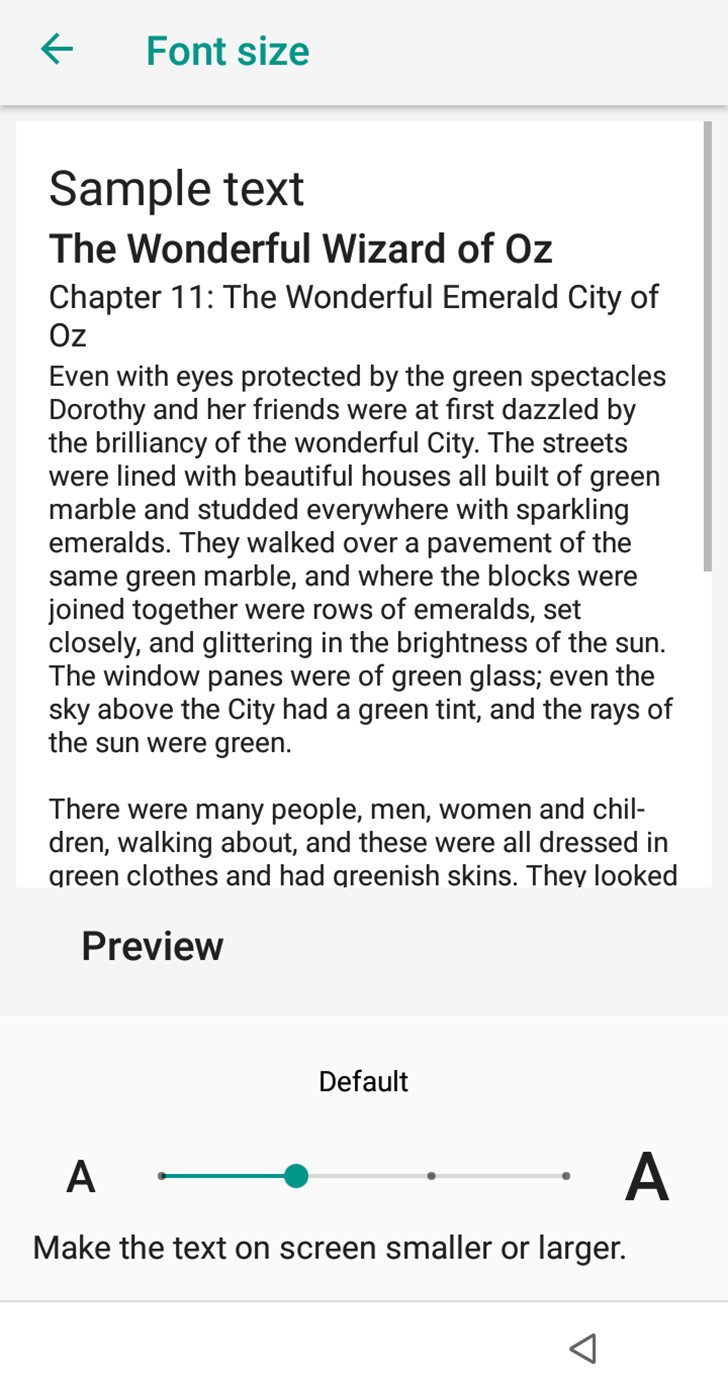
To adjust the font size on your Verofy® Move, select the **Font size** option. You'll see the slider to adjust the font size, with a sample text so you can view what size of font you will see. When you're happy with the font size you've selected, press the green back arrow at the top left of the screen, or the triangle at the bottom right of your screen to return to the Settings menu.
**Adjusting the display size**
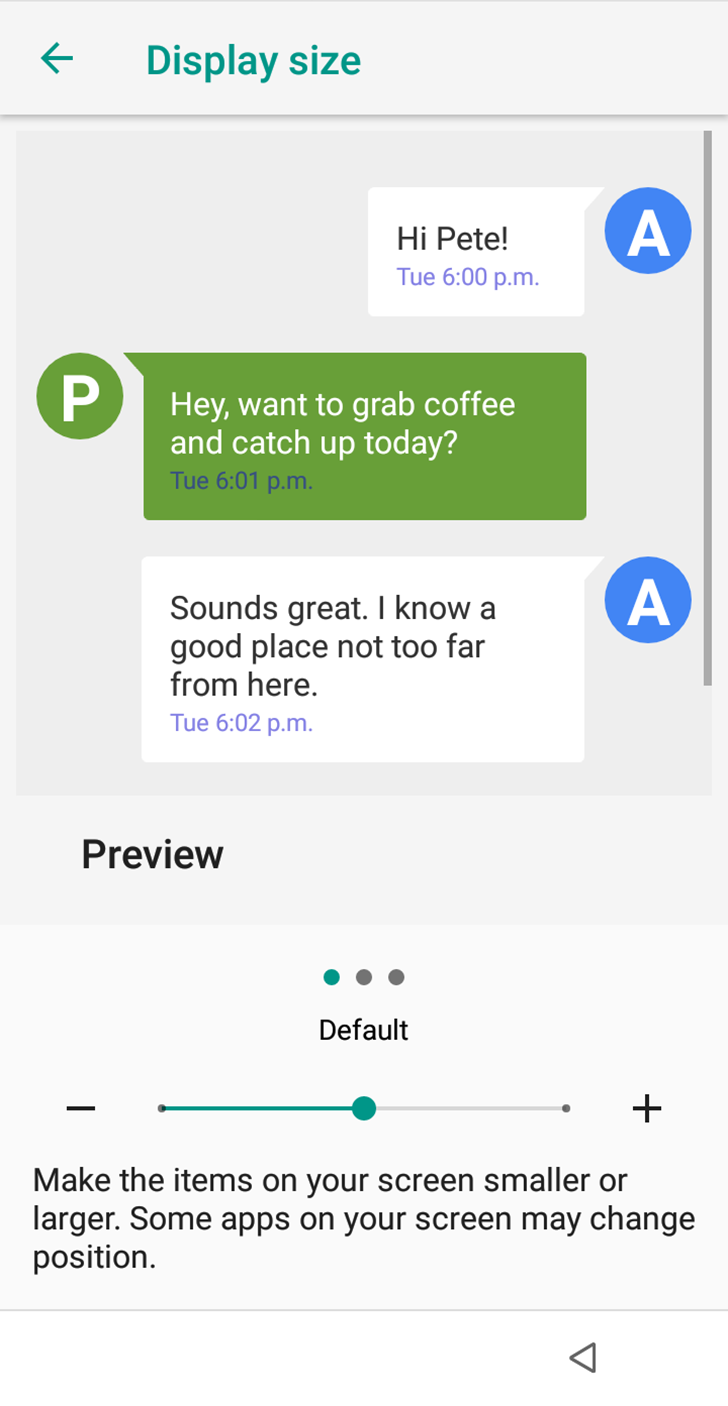
To adjust the display size on your Verofy® Move, select the **Display size** option. This is found within the Advanced Display setting options. This changes the size of your Sale, Refund etc buttons on your Verofy® Move. Use the slider to increase or decrease the display size accordingly. Once you're happy with the display size, press the green back arrow at the top left of the screen, or the triangle at the bottom right of your screen to return to the Settings menu.
**Adjusting the inactivity time for sleep mode to activate**
To adjust the sleep mode time on your Verofy® Move, select the **Sleep** option. You'll see a selection of options - the default is 5 minutes. This defines how long your Verofy® Move is inactive for before sleep mode activates. We recommend to keep this at 5 minutes for good battery life. If you're Verofy® Move is integrated with your till system, the sleep mode time will be set to 'Never' to ensure the connection is not interrupted. Press the triangle at the bottom right of your screen to return to the Settings menu once you've selected the neccessary option.
