# Adjusting the login settings on your Verofy® Move

Here's how you can enable auto logon or enable auto logoff - putting you in control of your Verofy® Move!

Head to the **Settings** menu from the main menu screen and select the **App Settings** option.

![image.png](https://verofy-2-knowledge-base-public.s3.amazonaws.com/uploads/images/gallery/2025-11/scaled-1680-/8cBimage.png)

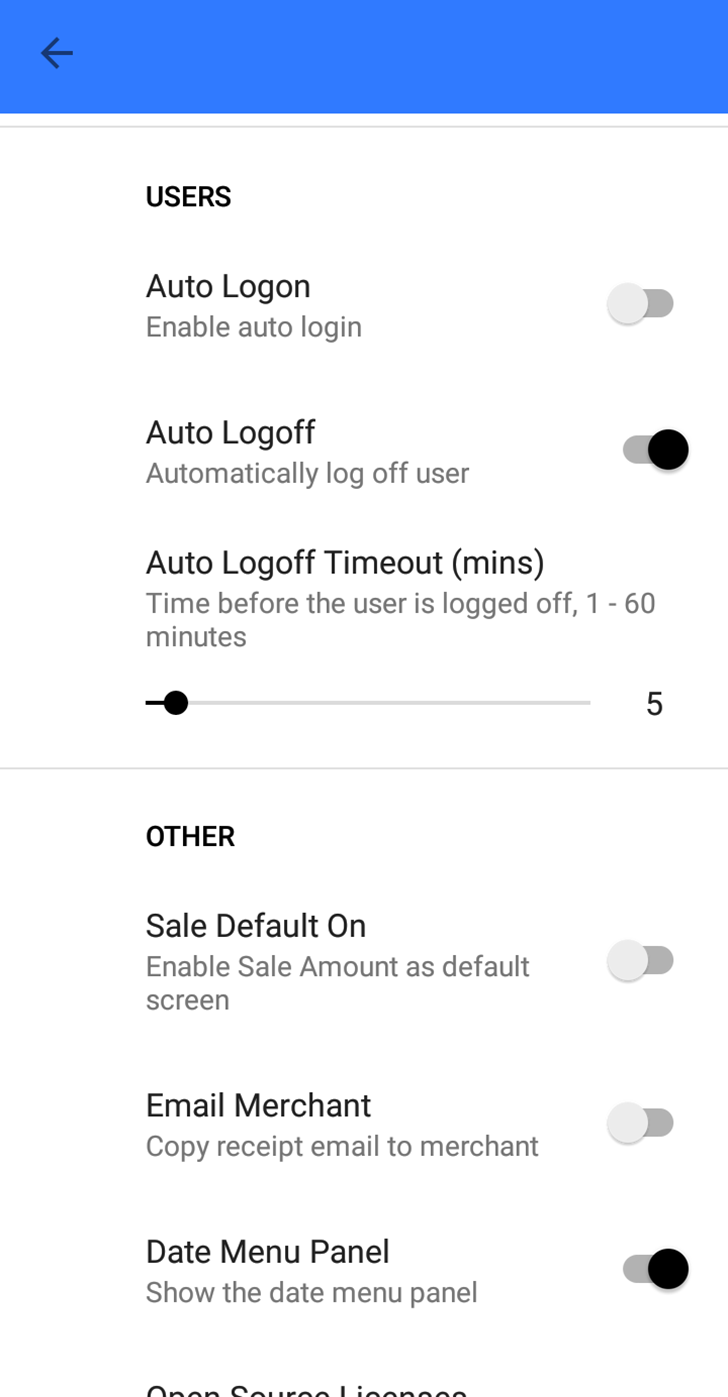
The preset settings for logging in will look like this. This means neither auto log on or auto log off are enabled as default.

![](https://verofy-2-knowledge-base-public.s3.amazonaws.com/uploads/images/gallery/2025-11/embedded-image-qsinth9m.png)

**<span style="color: rgb(0, 0, 0);">1. Enabling</span> <span style="color: rgb(48, 122, 255);">Auto Logoff  
</span>**<span style="color: rgb(48, 122, 255);">  
<span style="color: rgb(0, 0, 0);">To have your Verofy® Move automatically log out after a set period of inactivity, enable the **Auto Logoff** option. Use the slider to choose how long the device stays active before logging out—anywhere from **5 to 60 minutes**.</span>  
</span>

<p class="callout info"><span style="color: rgb(48, 122, 255);"><span style="color: rgb(0, 0, 0);">This option makes your Verofy® Move more secure, reducing the risk of potential unauthorised use if left unattended.</span></span></p>

<span style="color: rgb(48, 122, 255);"><span style="color: rgb(0, 0, 0);">![](https://verofy-2-knowledge-base-public.s3.amazonaws.com/uploads/images/gallery/2025-11/embedded-image-vub9omrf.png)</span></span>

**<span style="color: rgb(48, 122, 255);"><span style="color: rgb(0, 0, 0);">2. Enabling</span> Auto Logon</span>**

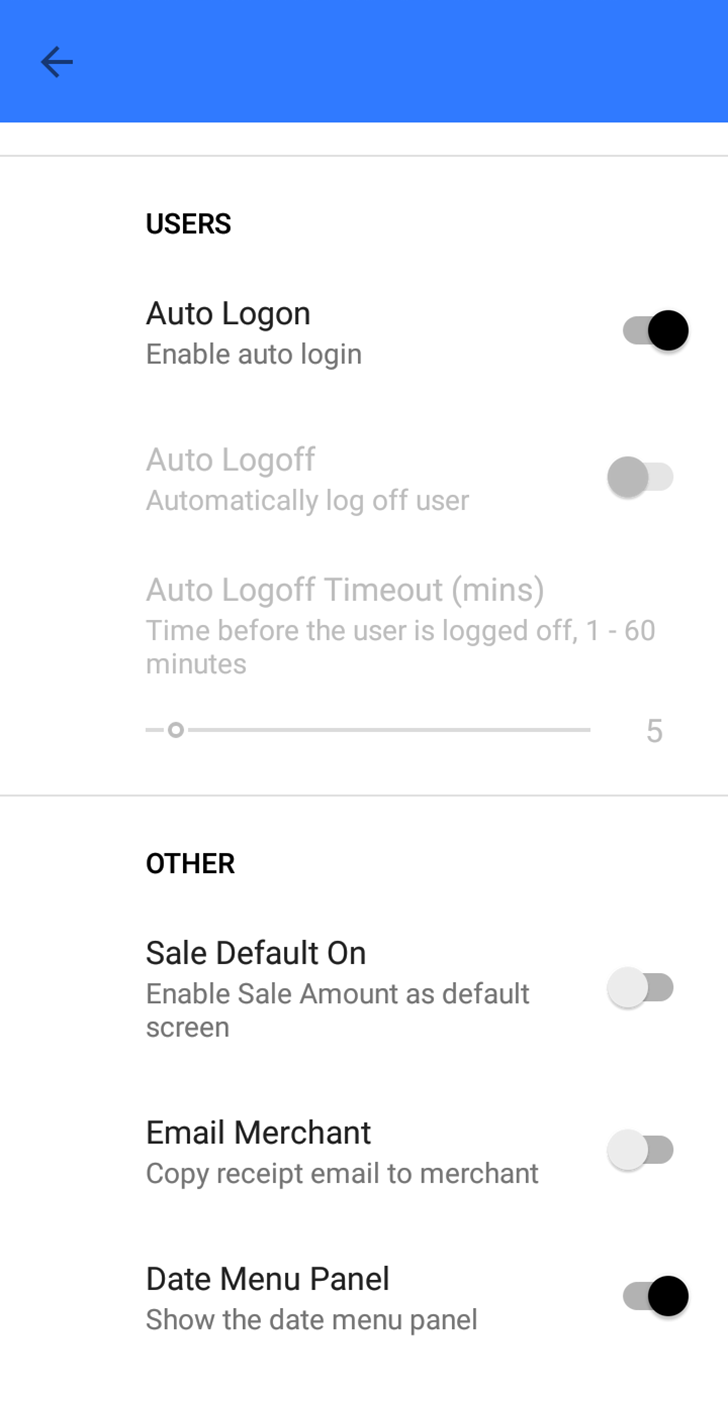
a) If you’d like to skip entering your User ID and Password each time you open the Verofy Plus application, **toggle on** the **Auto Logon** option.

<p class="callout warning"><span style="color: rgb(48, 122, 255);"><span style="color: rgb(0, 0, 0);">This option makes your Verofy® Move more less secure, increasing the risk of potential unauthorised use if left unattended.</span></span></p>

<span style="color: rgb(48, 122, 255);"><span style="color: rgb(0, 0, 0);">![](https://verofy-2-knowledge-base-public.s3.amazonaws.com/uploads/images/gallery/2025-11/embedded-image-i67wakrj.png)</span></span>

b) Press the back button at the top left of the <span style="color: rgb(48, 122, 255);"><span style="color: rgb(0, 0, 0);">Verofy® Move screen, then press the **Exit App** option from the **Settings** menu.   
  
![](https://verofy-2-knowledge-base-public.s3.amazonaws.com/uploads/images/gallery/2025-11/embedded-image-nwmhiyxe.png)  
  
  
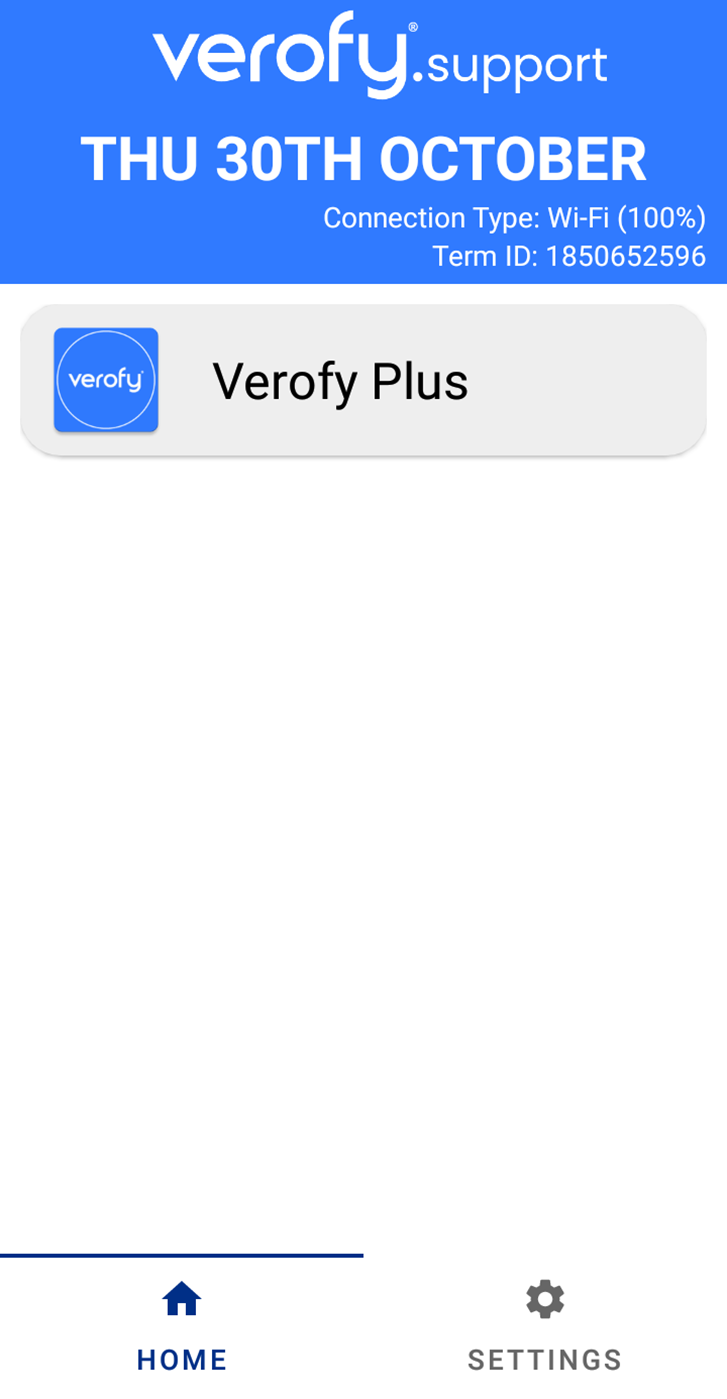
</span></span><span style="color: rgb(48, 122, 255);"><span style="color: rgb(0, 0, 0);">c) Select the **Verofy Plus** application. </span></span>
<span style="color: rgb(48, 122, 255);"><span style="color: rgb(0, 0, 0);">![](https://verofy-2-knowledge-base-public.s3.amazonaws.com/uploads/images/gallery/2025-11/embedded-image-gypncirh.png)</span></span>

<span style="color: rgb(48, 122, 255);"><span style="color: rgb(0, 0, 0);">  
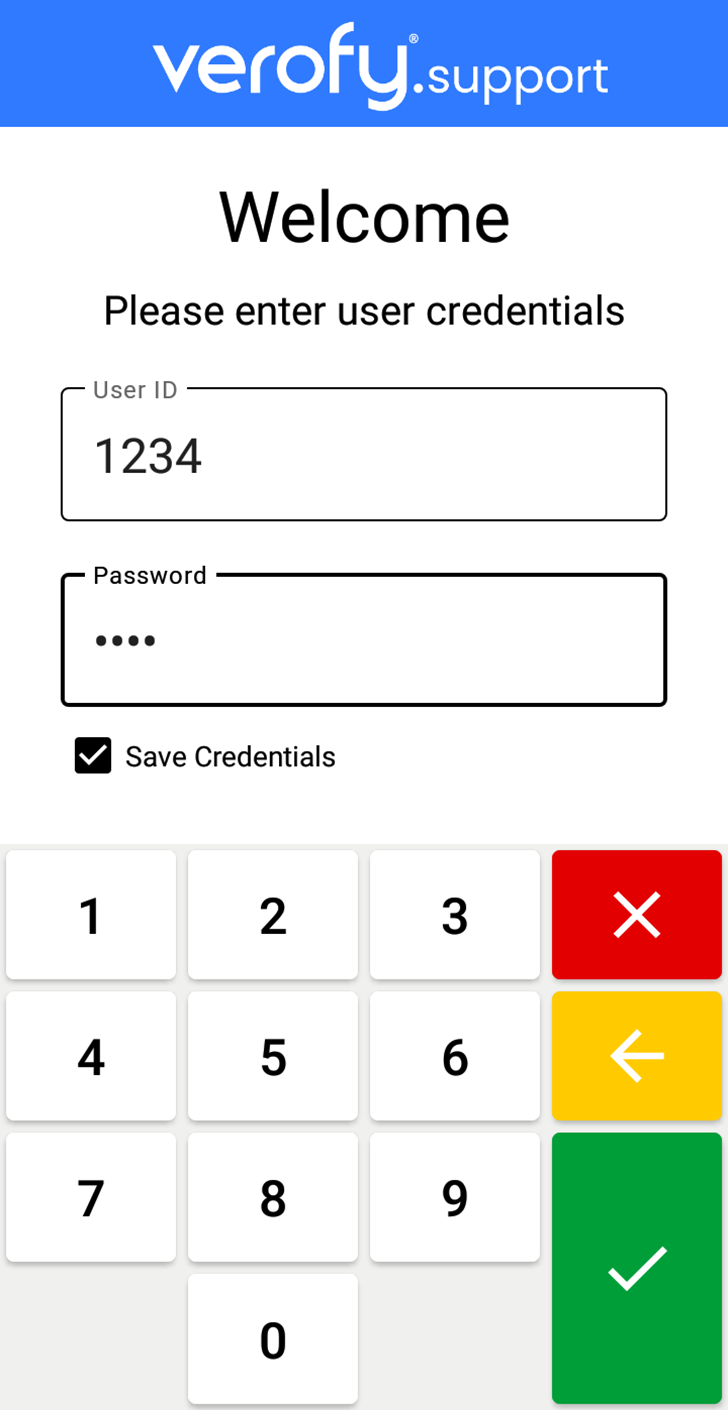
d) When entering your User ID and Password, **tick** the **Save Credentials** box before logging in. This will save your credentials and you'll no longer be asked to enter your User ID and Password if you need to log back into Verofy Plus again. </span></span>
<span style="color: rgb(48, 122, 255);"><span style="color: rgb(0, 0, 0);">![](https://verofy-2-knowledge-base-public.s3.amazonaws.com/uploads/images/gallery/2025-11/embedded-image-botibvef.png)</span></span>

<span style="color: rgb(48, 122, 255);"><span style="color: rgb(0, 0, 0);">If you need any support adjusting the login settings on your Verofy® Move, **<span style="color: rgb(48, 122, 255);">[contact us](https://verofy.support/shelves/getting-in-touch)</span>** and we'll be happy to help!</span></span>