Remember - the **terms and conditions** of your Payment Processing Agreement state that in relation to Transactions, **you will issue a receipt for all Transactions** including all information as required by the Instructions and Card Scheme Rules and **offer a copy to the Cardholder**, and **keep securely**, in accordance with PCI SSC standards, for a period of at least 15 months from the date of the Transaction, copies of all receipts and other evidence that Card Transactions have been validly authorised.
To change your print settings from the current default - follow the steps below: Head to the **Settings** menu from the main menu screen and select the **App Settings** option. 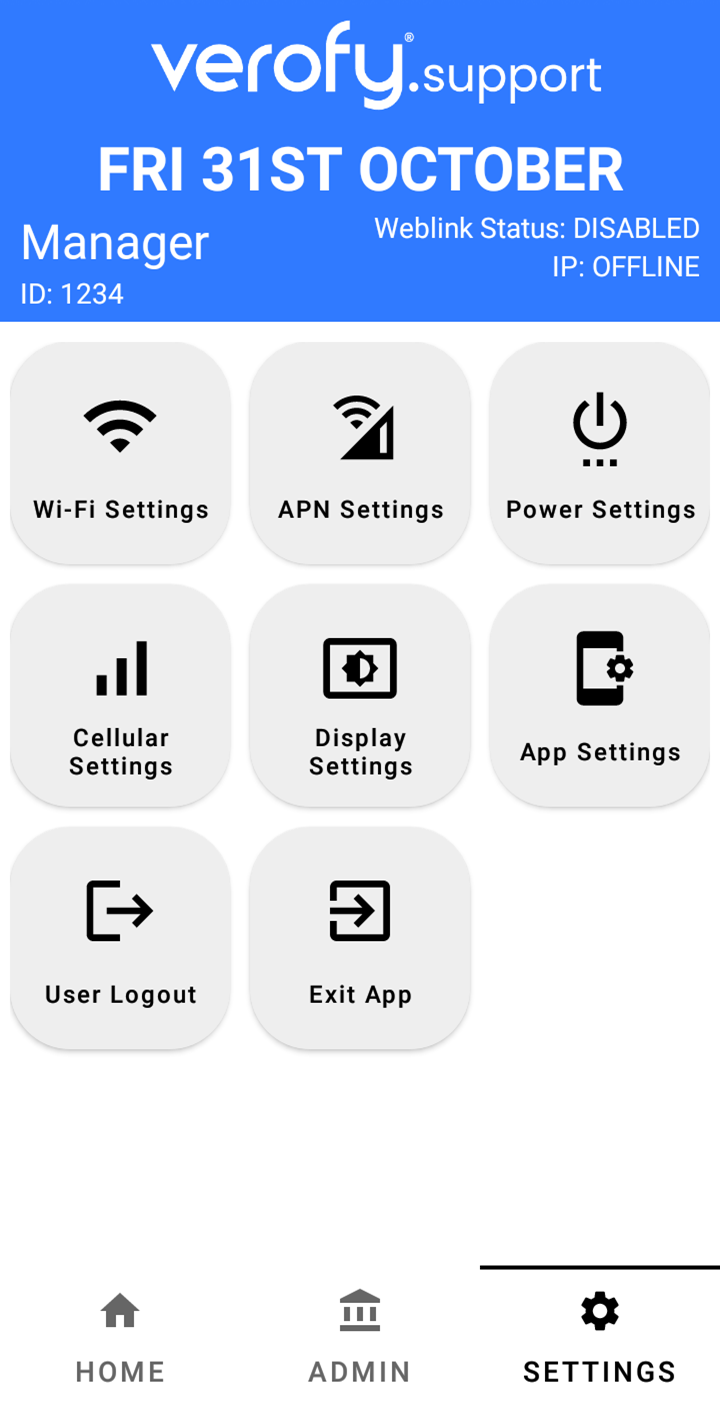 The preset print settings will look like this. This means both the Merchant and Cardholder copies of the receipts will print automatically after every transaction. 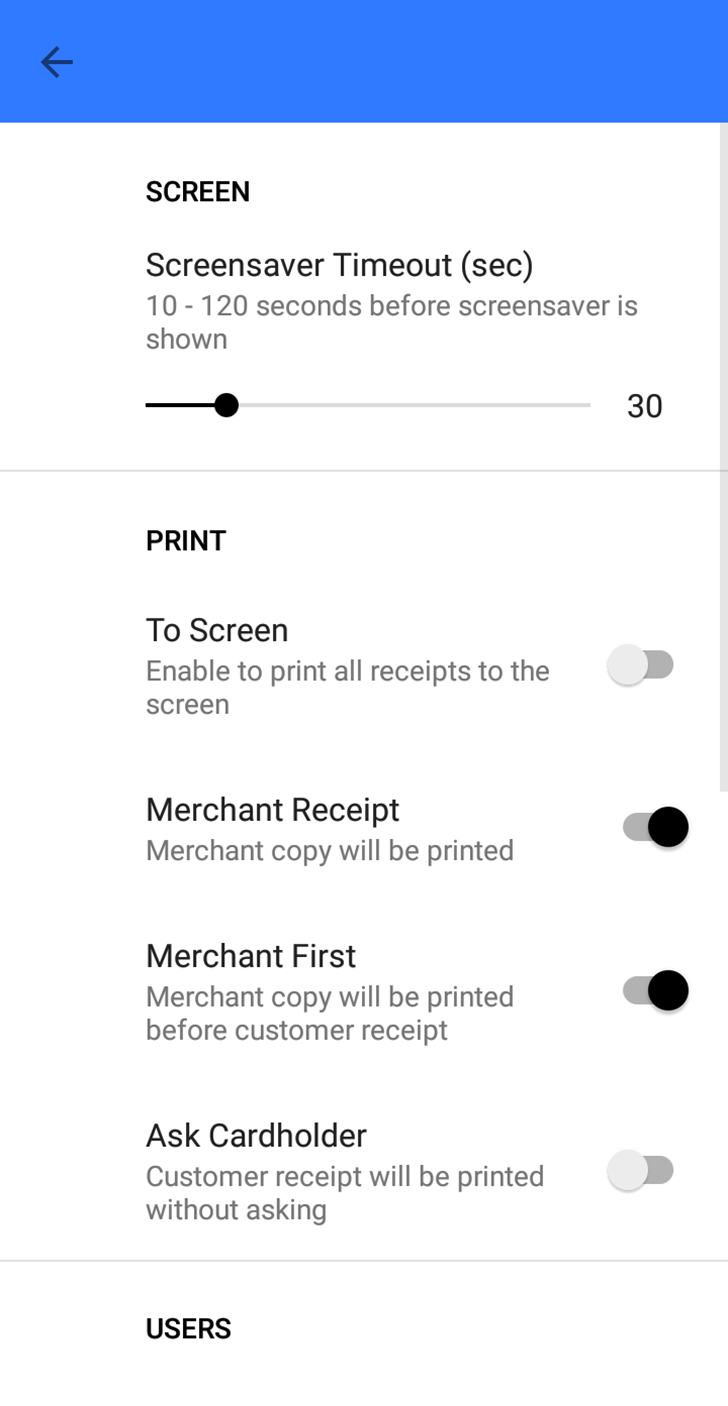 See below how to adjust the preset settings: **1. Enabling Print to Screen** To turn on Print to screen, toggle on the **To Screen** option. 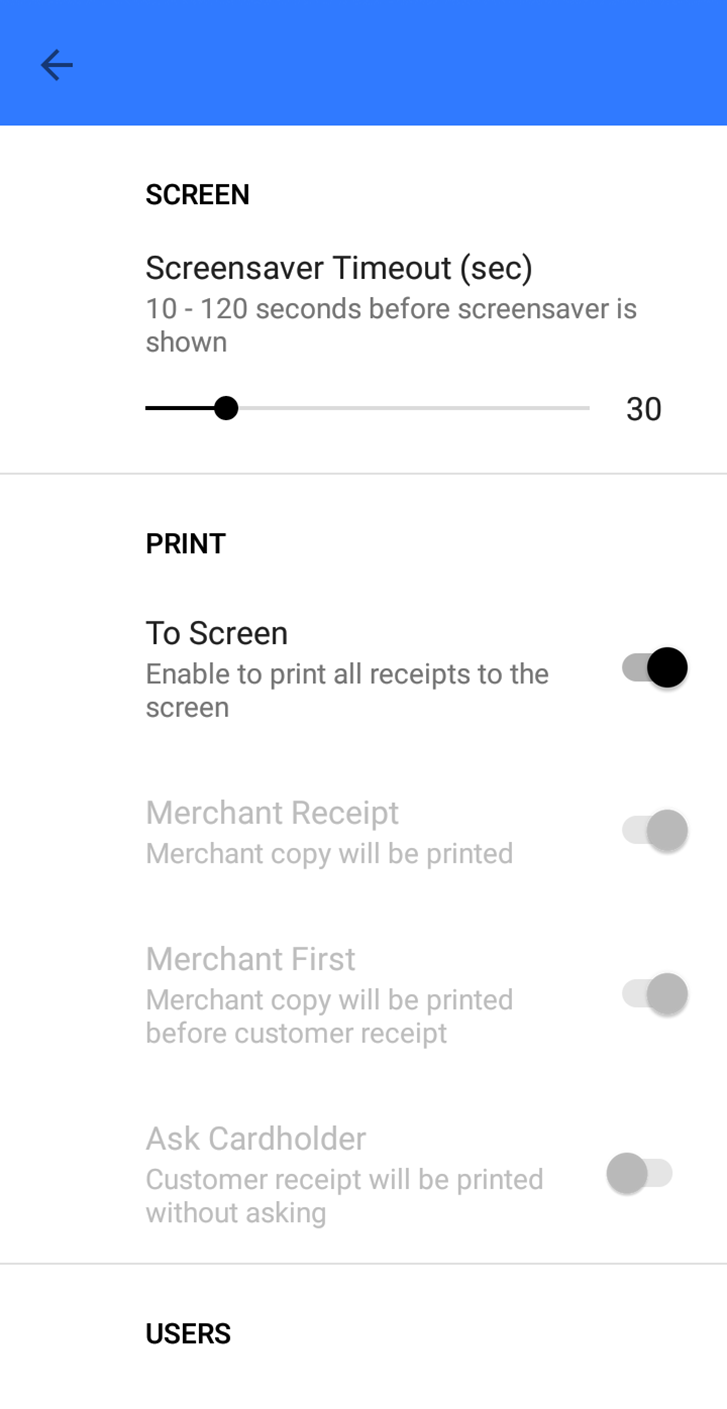 When this is enabled, you'll be presented with the Print to Screen page after a transaction. It will look similar to the below depending on the result of the transaction. 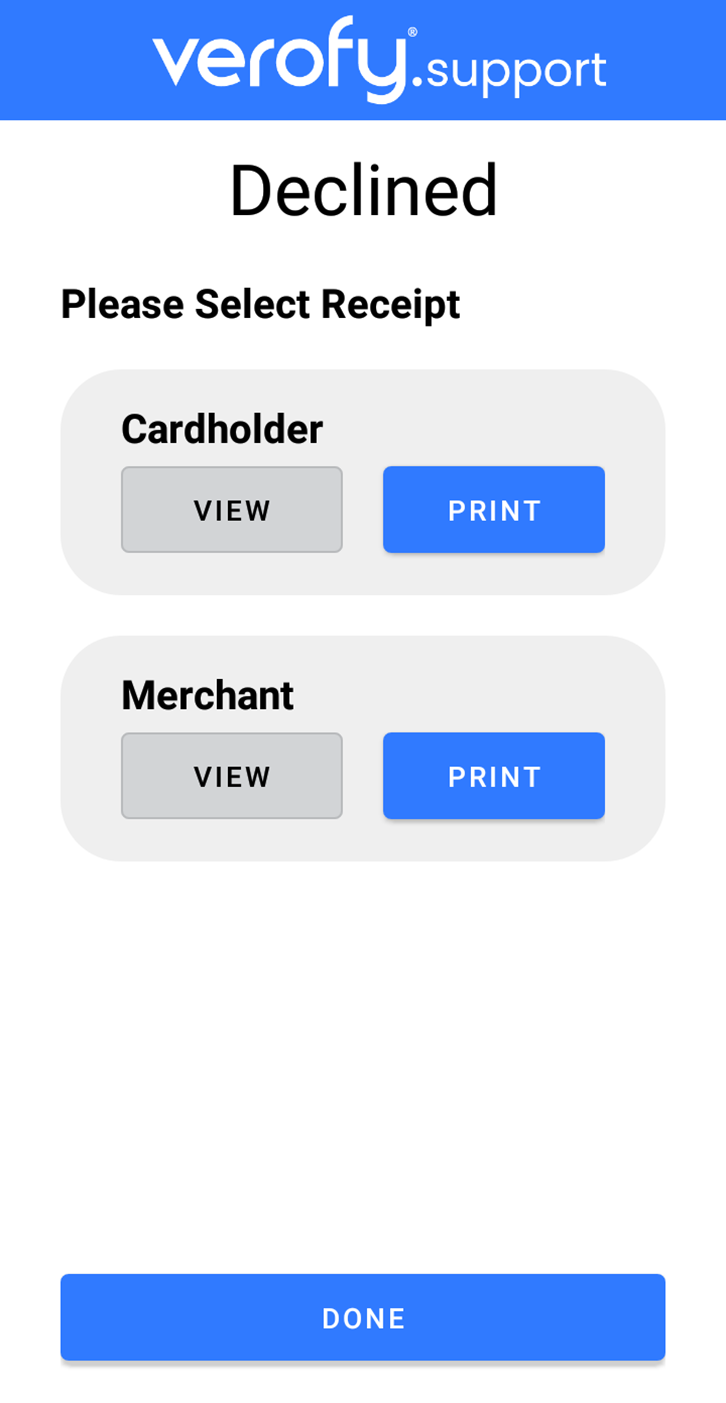 **2.** **Prompt the user to confirm if Cardholder copy is required** To enable this option, toggle on the **Ask Cardholder** option. When this is enabled, the terminal will print the Merchant copy of the receipt automatically, and then provide the user with the following prompt on screen.  If you need any support adjusting the print settings on your Verofy® Move, **[contact us](https://verofy.support/shelves/getting-in-touch)** and we'll be happy to help!