# Accessing your Verofy® PayLinks in the Verofy® App

This page shows you where to locate your Verofy® PayLinks in the Verofy® App if you have this product.

<div class="pointer-container" id="bkmrk-%C2%A0"><div class="pointer anim is-page-editable"><svg class="svg-icon" data-icon="link" role="presentation" viewbox="0 0 24 24" xmlns="http://www.w3.org/2000/svg"></svg><div class="input-group inline block"> <button class="button outline icon" data-clipboard-target="#pointer-url" title="Copy Link" type="button"><svg class="svg-icon" data-icon="copy" role="presentation" viewbox="0 0 24 24" xmlns="http://www.w3.org/2000/svg"></svg></button></div><svg class="svg-icon" data-icon="edit" role="presentation" viewbox="0 0 24 24" xmlns="http://www.w3.org/2000/svg"></svg></div></div>1. You'll need to begin by ensuring you are logged into the Verofy® App. To do this, you have to enter your mobile number and PIN. You may be prompted to enter a verfication code.
2. If you're new to logging into the Verofy® App, you may see the below screen. To access your Verofy® PayLinks from here, click the second option in the list. Alternatively, click the **Pay** button at the bottom of the screen to take you to your Verofy® PayLinks.   

      
    ![](https://verofy-2-knowledge-base-public.s3.amazonaws.com/uploads/images/gallery/2025-11/embedded-image-o0ygvtkb.png)
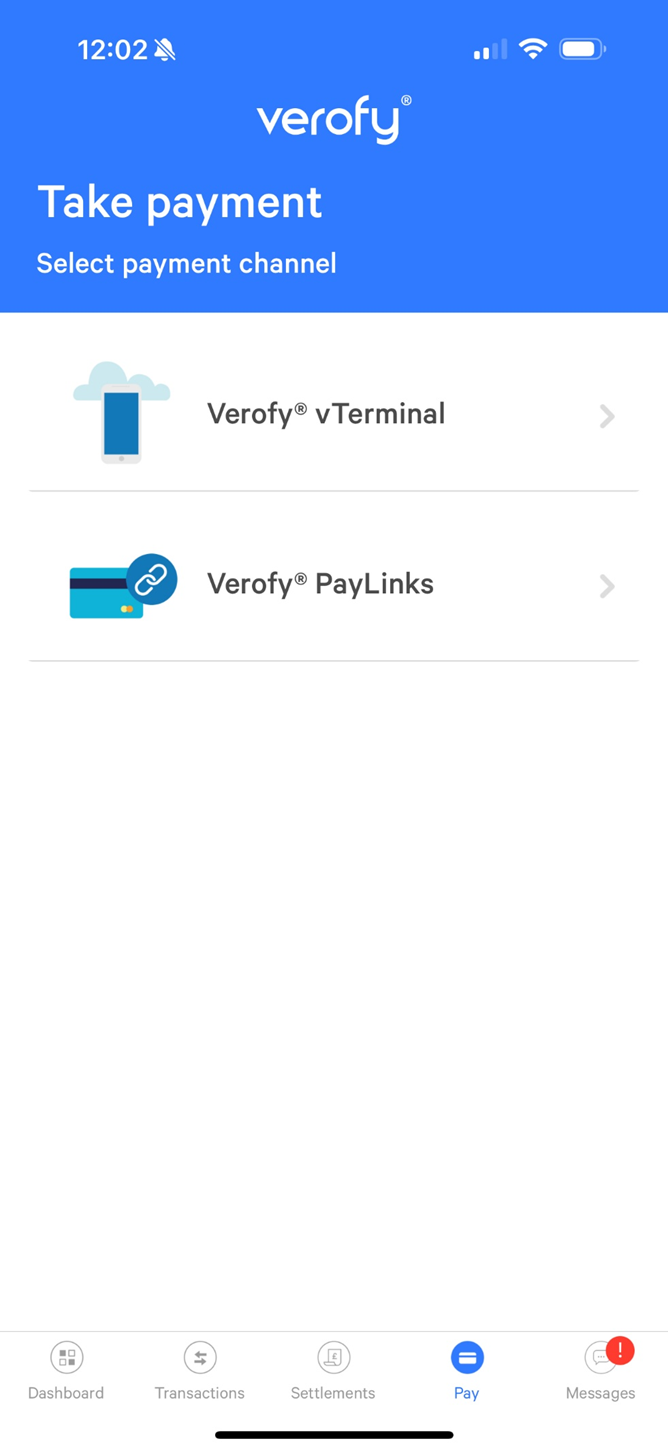
3. If you have multiple vPayment products, they'll be listed here. Select Verofy® PayLinks to continue.   
      
    ![](https://verofy-2-knowledge-base-public.s3.amazonaws.com/uploads/images/gallery/2025-11/embedded-image-6xmegng0.png)
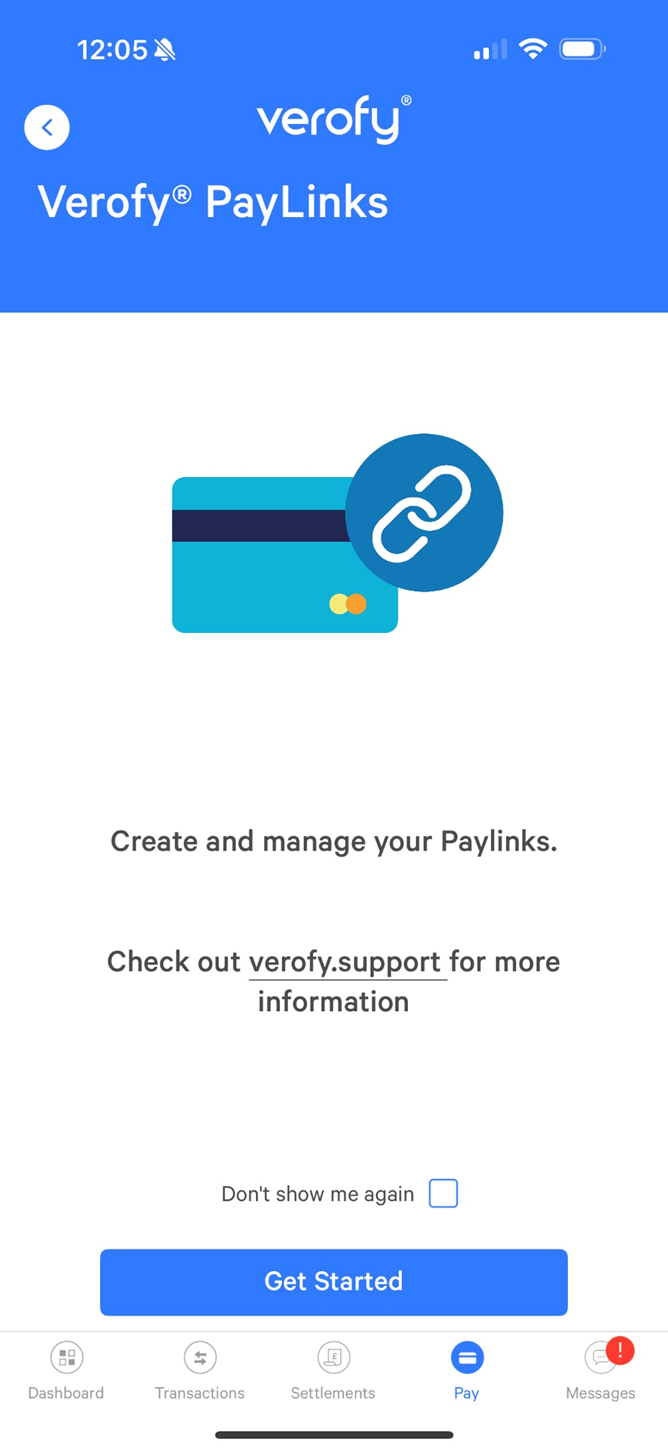
4. From here, you can **Get Started** and take payments.   
      
    ![](https://verofy-2-knowledge-base-public.s3.amazonaws.com/uploads/images/gallery/2025-11/embedded-image-ir6xhf5g.png)

If you want to send a pay link, you can click <span style="text-decoration: underline;">**[here](https://verofy.support/books/taking-virtual-payments/page/in-app-Bve)**</span> for the guide on sending in the Verofy® App.