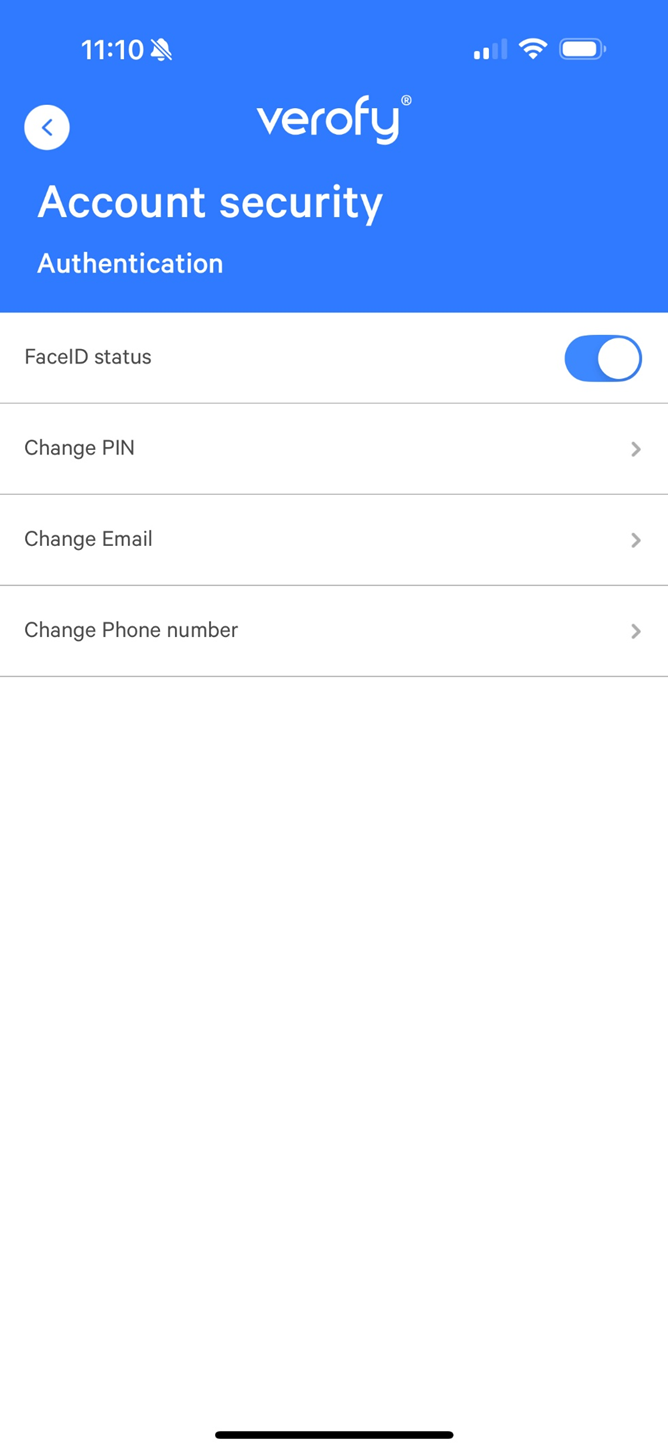
# Account security

Here, you can manage your authentication settings.

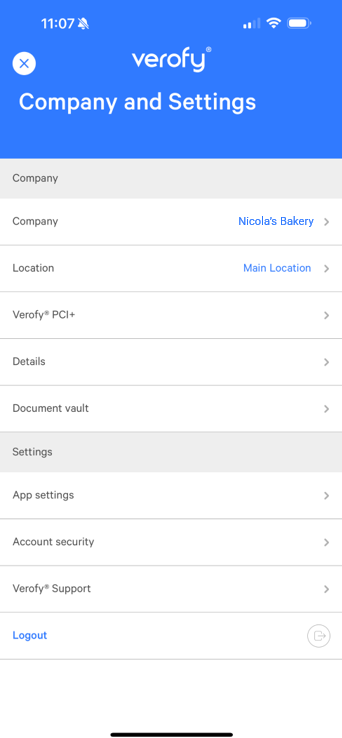
Log into the Verofy® App, then press the **...** button at the top right of the screen.

![](https://verofy-2-knowledge-base-public.s3.amazonaws.com/uploads/images/gallery/2025-12/embedded-image-8jf19nbr.png)

  
From here, select the **Account Security** option.
<div class="pointer-container" id="bkmrk-%C2%A0"><div class="pointer anim is-page-editable"><svg class="svg-icon" data-icon="link" role="presentation" viewbox="0 0 24 24" xmlns="http://www.w3.org/2000/svg"></svg><div class="input-group inline block"> <button class="button outline icon" data-clipboard-target="#pointer-url" title="Copy Link" type="button"><svg class="svg-icon" data-icon="copy" role="presentation" viewbox="0 0 24 24" xmlns="http://www.w3.org/2000/svg"></svg></button></div><svg class="svg-icon" data-icon="edit" role="presentation" viewbox="0 0 24 24" xmlns="http://www.w3.org/2000/svg"></svg></div></div>![image.png](https://verofy-2-knowledge-base-public.s3.amazonaws.com/uploads/images/gallery/2025-12/scaled-1680-/WHZimage.png)

From here, you can enable Face/TouchID (this removes the entry of PIN during login and instead will require the Face/Touch ID).

You can also change your pin for logging in, your email address and your phone number by selecting the relevant option and following the onscreen instructions. If you need any help or support with this, <span style="color: rgb(48, 122, 255);">**[get in touch.](https://verofy.support/shelves/getting-in-touch)**</span>

![](https://verofy-2-knowledge-base-public.s3.amazonaws.com/uploads/images/gallery/2025-12/embedded-image-uhjjrypf.png)