Remember - Verofy® vTerminal payments are **non-secure,** so you'll be charged non-secure fees on these transactions.
1. You'll need to begin by locating your Verofy® vTerminal in the Verofy® App. If you've not done this already, you can click **[here](https://verofy.support/books/access-virtual-products/page/in-app)** for help. 2. Once you've pressed **Get started**, you'll see a list of all the transactions you've done on your Verofy® vTerminal. Press **Take Payment** to start a new transaction. 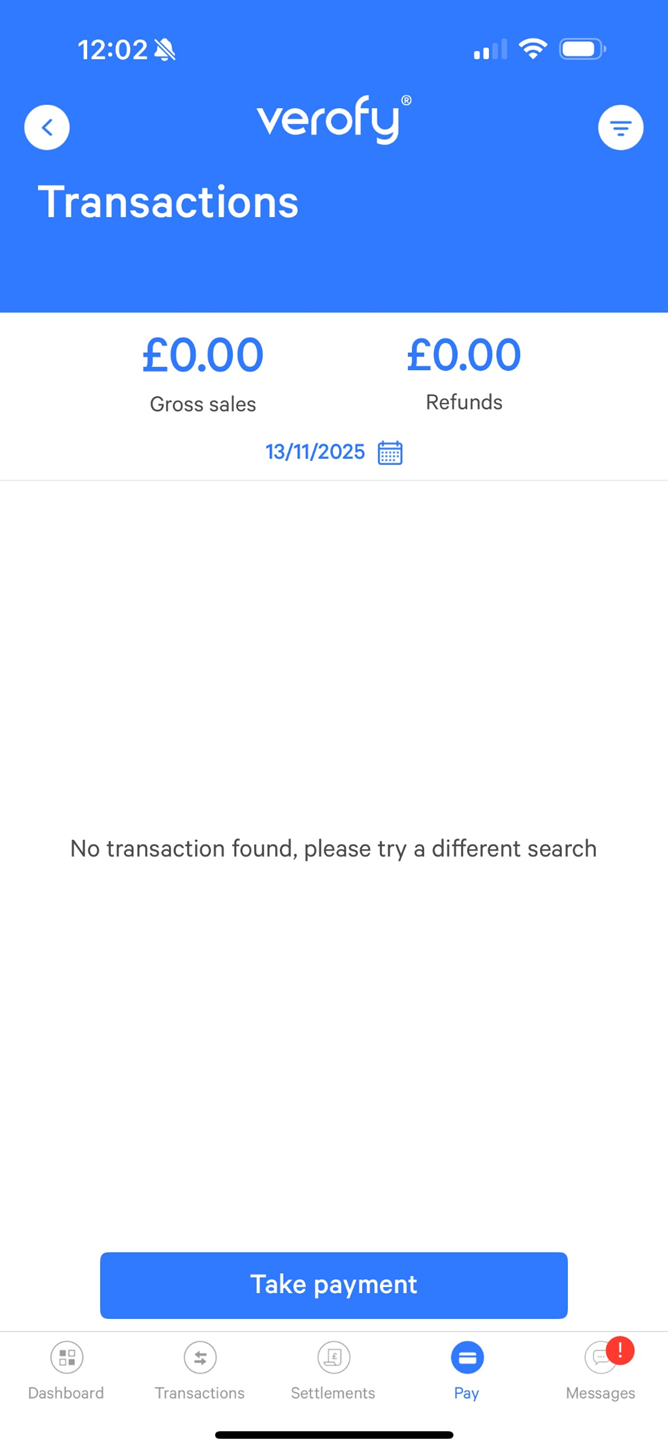 3. Enter the amount of the transaction. Once you've done this, press the green tick to continue.  4. Next, you'll have to enter the information from the card which the customer is using to pay. You'll need to enter the following information. Once done, press **Confirm payment**. - Name on card - Card Number (this is the long, 16 digit number on the front of the card) - Expiry date - CVC (3 digit security number on the back of the card) - Email address (if applicable) - Postcode  You'll see the below error message if there is an issue completing the transaction. Double check if the information entered is accurate, and amend if not.. Once you've done this, press the **Confirm payment** button to attempt the transaction again. 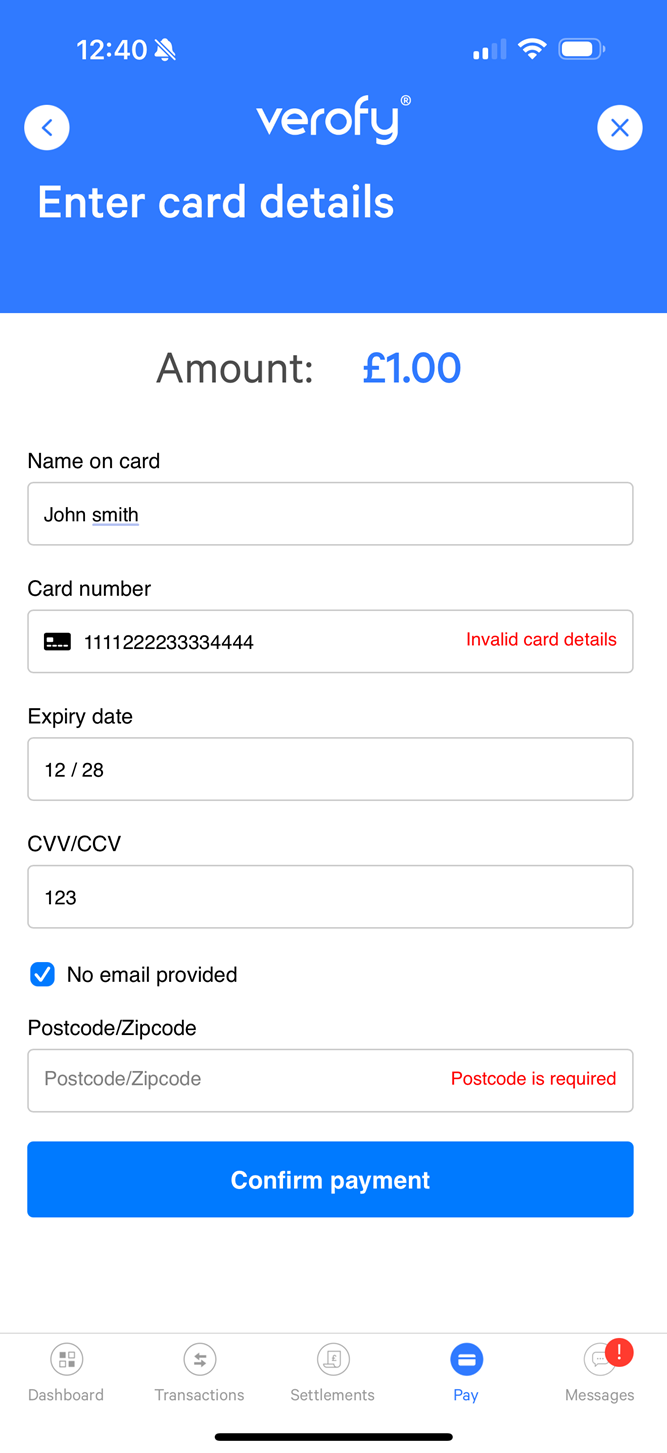 5. The payment will then be processed. You'll see the payment status screen which confirms if the transaction status. It will show one of two results. 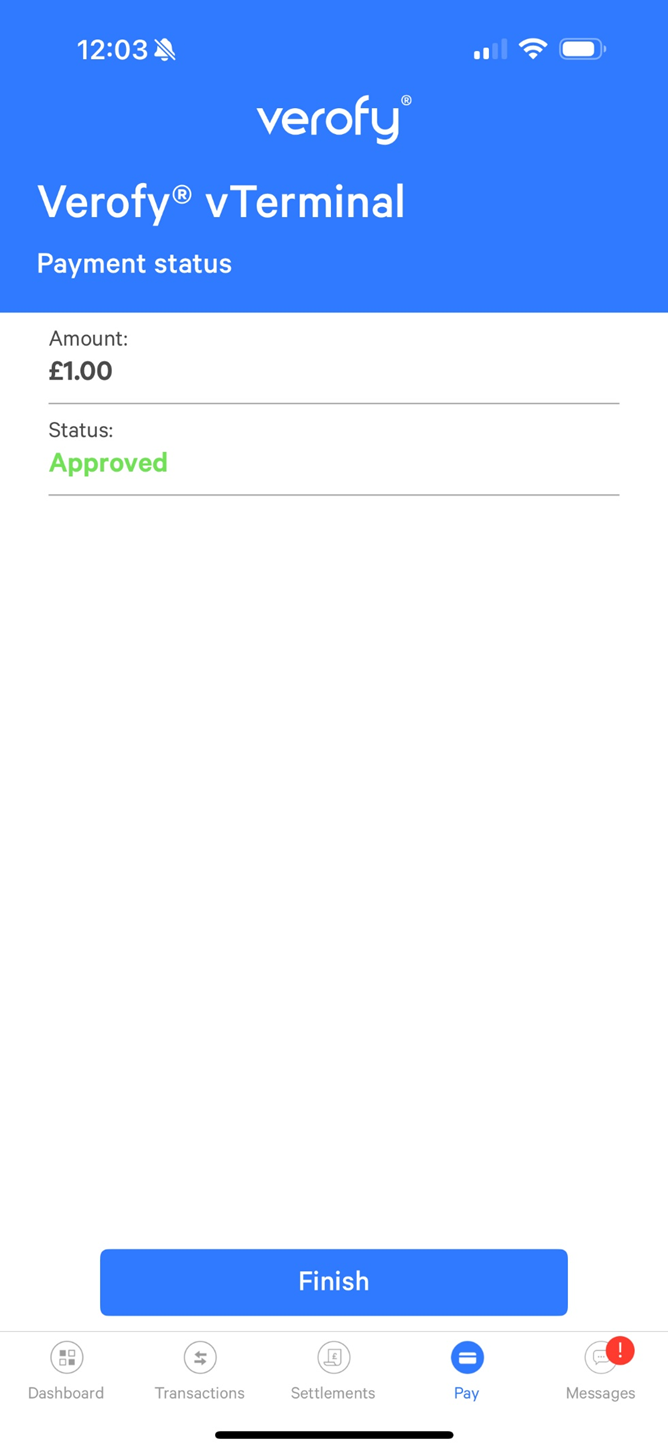 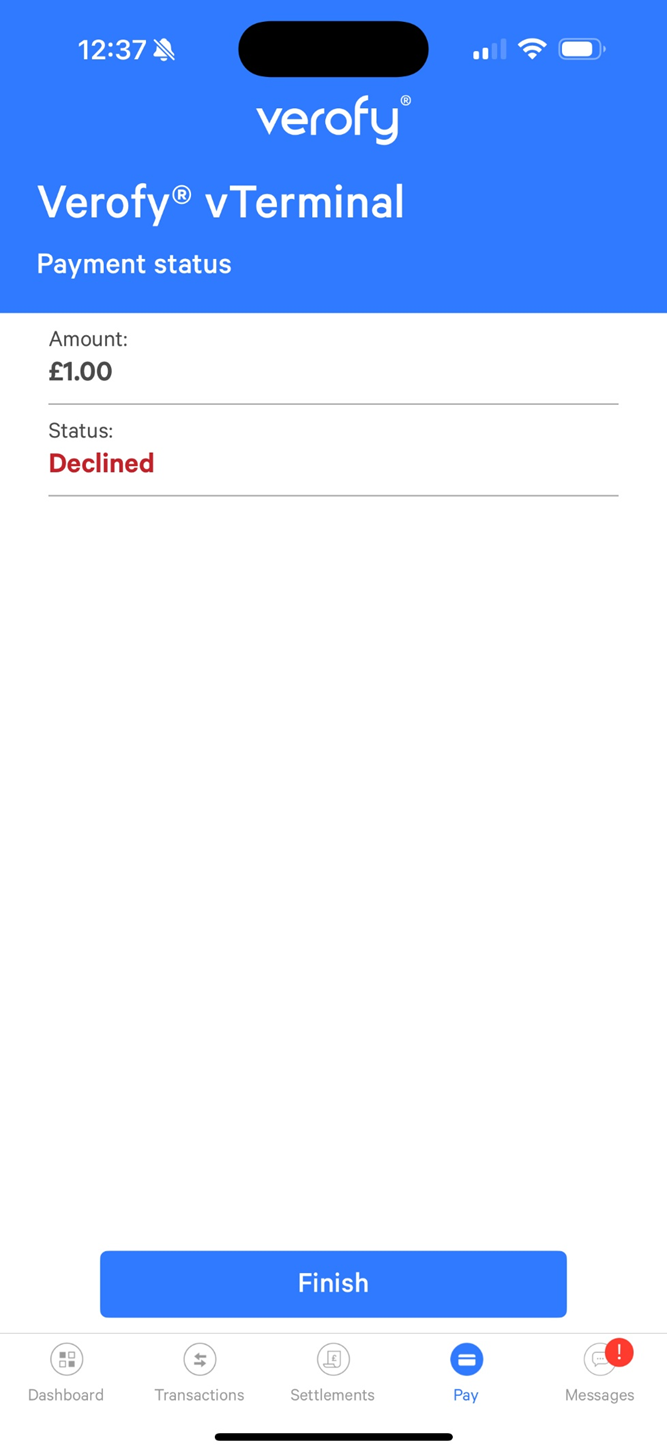 That's it! You've taken a payment in the Verofy® App via your Verofy® vTerminal.