# Download or email PDF copies of transactions

From the **Options** button in the **[transaction detail record](https://verofy.support/books/navigating-verofy-cloud/page/viewing-transaction-details)**, you can select to download as PDF or email receipt.

<span style="text-decoration: underline;">Download as PDF</span>

From the **Options** button, select **Download as PDF**

![image.png](https://verofy-2-knowledge-base-public.s3.amazonaws.com/uploads/images/gallery/2024-05/scaled-1680-/5TZimage.png)  
  
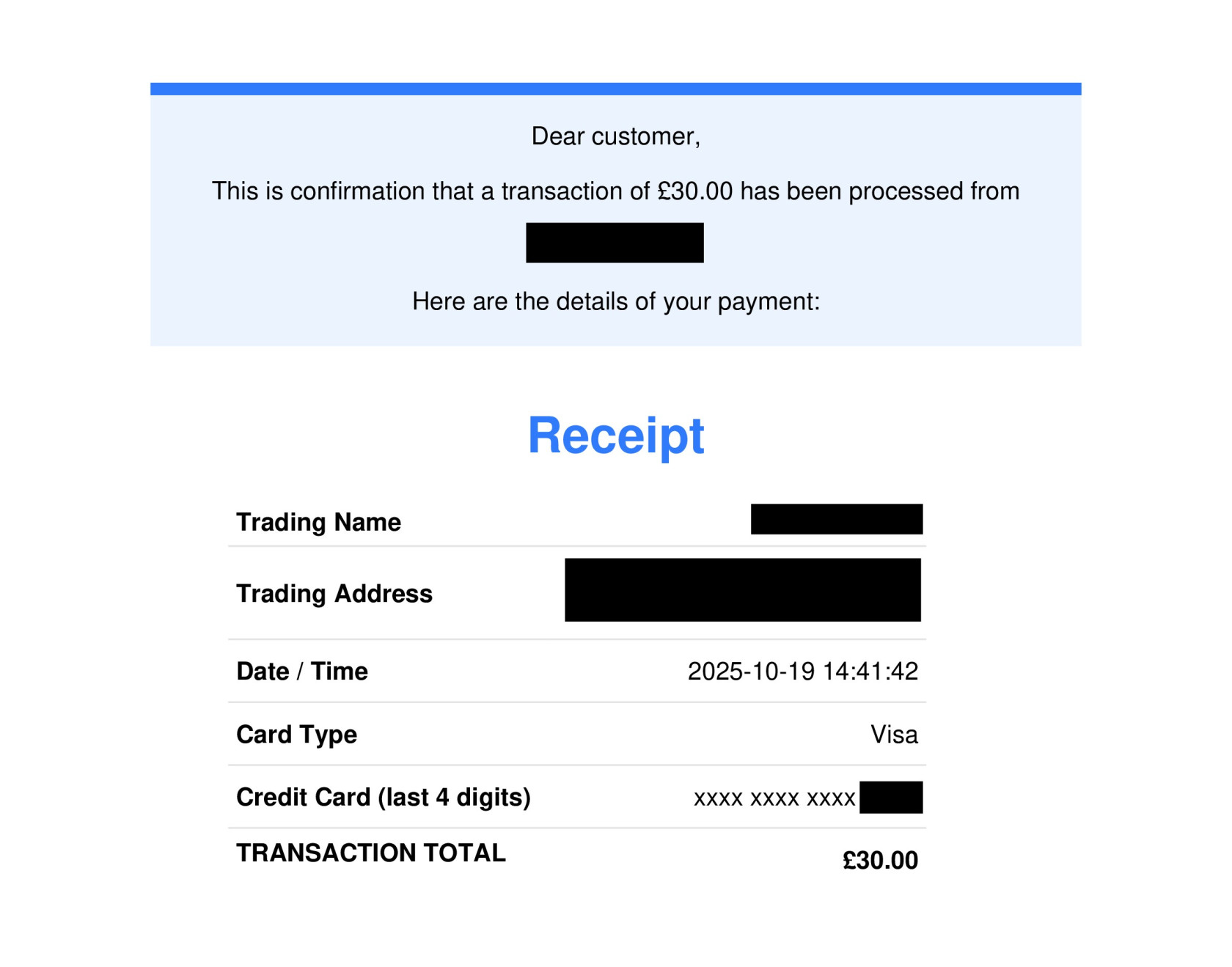
The file will then download. Here's an example of what it will look like:
![receipt file (8)(1).jpg](https://verofy-2-knowledge-base-public.s3.amazonaws.com/uploads/images/gallery/2025-10/scaled-1680-/k8Preceipt-file-81.jpg)

<span style="text-decoration: underline;">Email receipt</span>

From the **Options** button, select **Email receipt**. You'll see the below pop up and be asked to enter the customer's email address.

![image.png](https://verofy-2-knowledge-base-public.s3.amazonaws.com/uploads/images/gallery/2024-05/scaled-1680-/jE0image.png)

If receipt is sent successfully, you'll see the below confirmation message at the top right of the screen.

![image.png](https://verofy-2-knowledge-base-public.s3.amazonaws.com/uploads/images/gallery/2024-05/scaled-1680-/4NQimage.png)

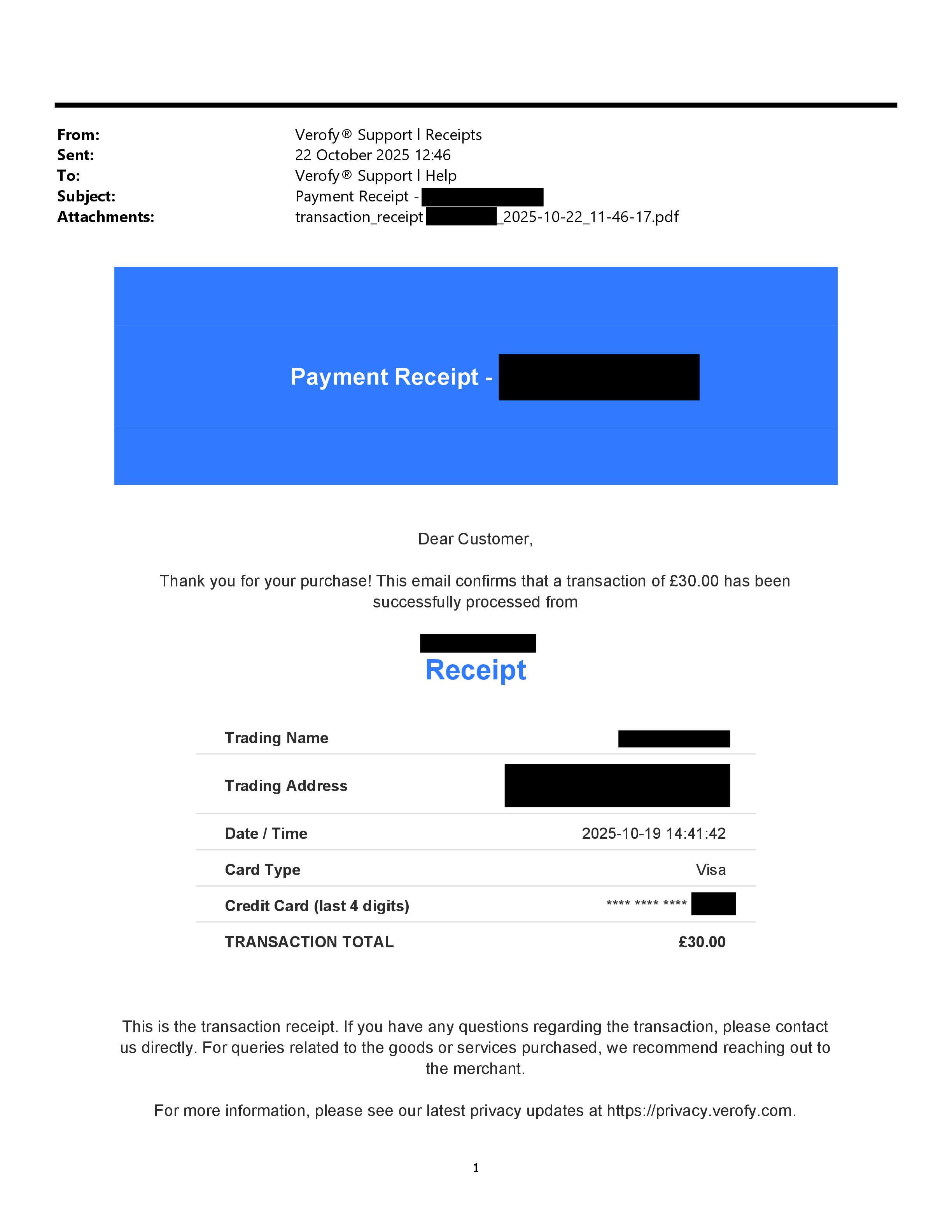
The receipt will be sent from <span style="color: rgb(48, 122, 255);">receipts@verofy.support<span style="color: rgb(0, 0, 0);">, with the display name as Verofy Support - Receipts.  
</span></span>  
Here's how the email will look - it also includes a PDF attachment with the receipt details:
![eg receipt(1).jpg](https://verofy-2-knowledge-base-public.s3.amazonaws.com/uploads/images/gallery/2025-10/scaled-1680-/eg-receipt1.jpg)