# Filtering transaction data

If you want to view transactions within a certain date range or time period, you can do so using the filter options in Verofy® Cloud.

To begin, head to the **Transactions** tab.

![image.png](https://verofy-2-knowledge-base-public.s3.amazonaws.com/uploads/images/gallery/2024-05/scaled-1680-/cb4image.png)

<div class="pointer-container" id="bkmrk-%C2%A0"><div class="pointer anim is-page-editable"><svg class="svg-icon" data-icon="link" role="presentation" viewbox="0 0 24 24" xmlns="http://www.w3.org/2000/svg"></svg><div class="input-group inline block"> <button class="button outline icon" data-clipboard-target="#pointer-url" title="Copy Link" type="button"><svg class="svg-icon" data-icon="copy" role="presentation" viewbox="0 0 24 24" xmlns="http://www.w3.org/2000/svg"></svg></button></div><svg class="svg-icon" data-icon="edit" role="presentation" viewbox="0 0 24 24" xmlns="http://www.w3.org/2000/svg"></svg></div></div>  
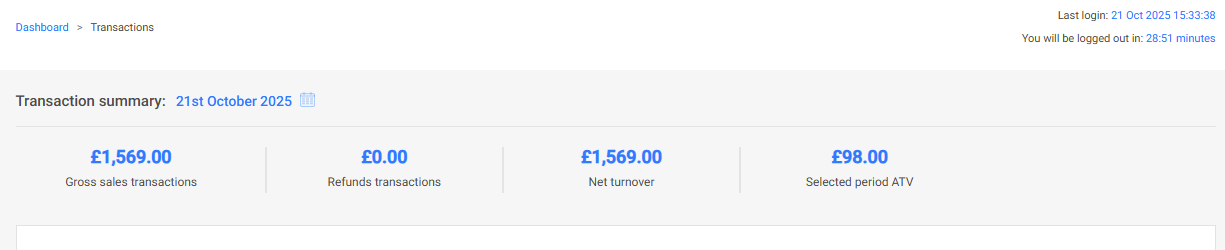
As default, the date range filter will be preset to the current day.
![image.png](https://verofy-2-knowledge-base-public.s3.amazonaws.com/uploads/images/gallery/2025-10/scaled-1680-/Mt9image.png)  
  
  
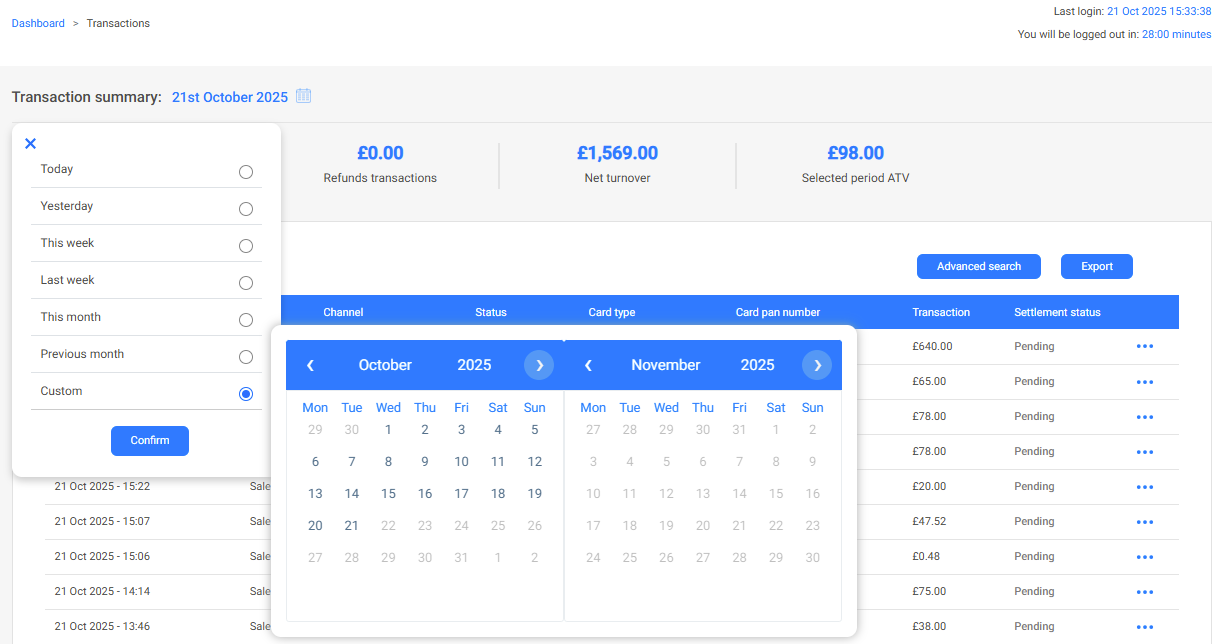
You can click the calendar icon from this page to filter to a different date range. There are preset options to select or you can select your own custom range.
![image.png](https://verofy-2-knowledge-base-public.s3.amazonaws.com/uploads/images/gallery/2025-10/scaled-1680-/3bpimage.png)

If you have lots of records, you can choose how many transactions to view per page (up to 100) and can select the page you need from the drop down. This bar is located at the bottom of the list of transactions.

![image.png](https://verofy-2-knowledge-base-public.s3.amazonaws.com/uploads/images/gallery/2024-05/scaled-1680-/t2Gimage.png)

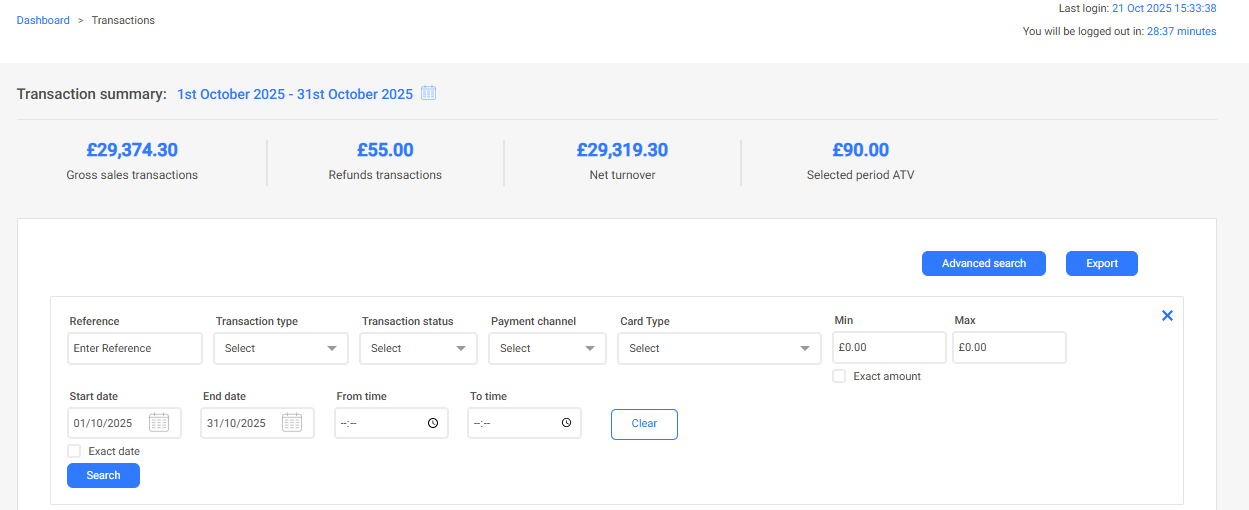
In this example, the user has changed the date range from the preset (current day) to show from the current month. When the range is selected, you'll see that the summary values at the top of the page will update based on the transactions taken within the filtered period.

![image.png](https://verofy-2-knowledge-base-public.s3.amazonaws.com/uploads/images/gallery/2025-10/scaled-1680-/He4image.png)

If you need your filtering to be more specific, you can press the **Advanced search** button to open up more filter options. From here, you can filter by time, amount or transaction type. We'll show you two examples below - filtering by transaction type and filtering by time.
<div class="pointer-container" id="bkmrk-%C2%A0-2"><div class="pointer anim is-page-editable"><svg class="svg-icon" data-icon="link" role="presentation" viewbox="0 0 24 24" xmlns="http://www.w3.org/2000/svg"></svg><div class="input-group inline block"> <button class="button outline icon" data-clipboard-target="#pointer-url" title="Copy Link" type="button"><svg class="svg-icon" data-icon="copy" role="presentation" viewbox="0 0 24 24" xmlns="http://www.w3.org/2000/svg"></svg></button></div><svg class="svg-icon" data-icon="edit" role="presentation" viewbox="0 0 24 24" xmlns="http://www.w3.org/2000/svg"></svg></div></div>![image.png](https://verofy-2-knowledge-base-public.s3.amazonaws.com/uploads/images/gallery/2025-10/scaled-1680-/Zo2image.png)

<span style="text-decoration: underline;">*Filtering by Transaction Type*</span>

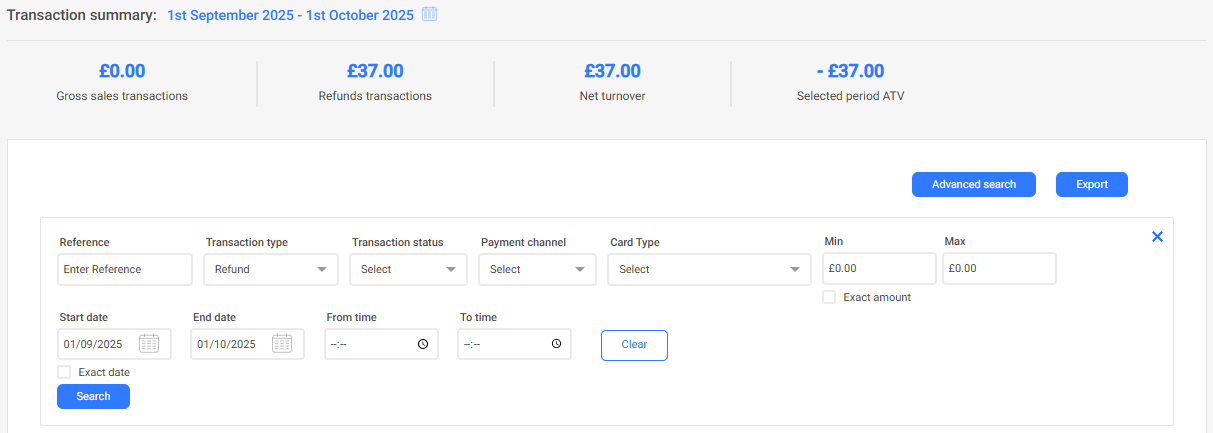
You can easily filter by transaction type by selecting the type you wish to review from the drop down list.

Here, the user wants to filter to see all **Refund** transactions between 1st September and 1st October. Press search to find all records for the criteria. The summary figures at the top of the screen will update based on the filtered information.   
  
![image.png](https://verofy-2-knowledge-base-public.s3.amazonaws.com/uploads/images/gallery/2025-10/scaled-1680-/QFeimage.png)

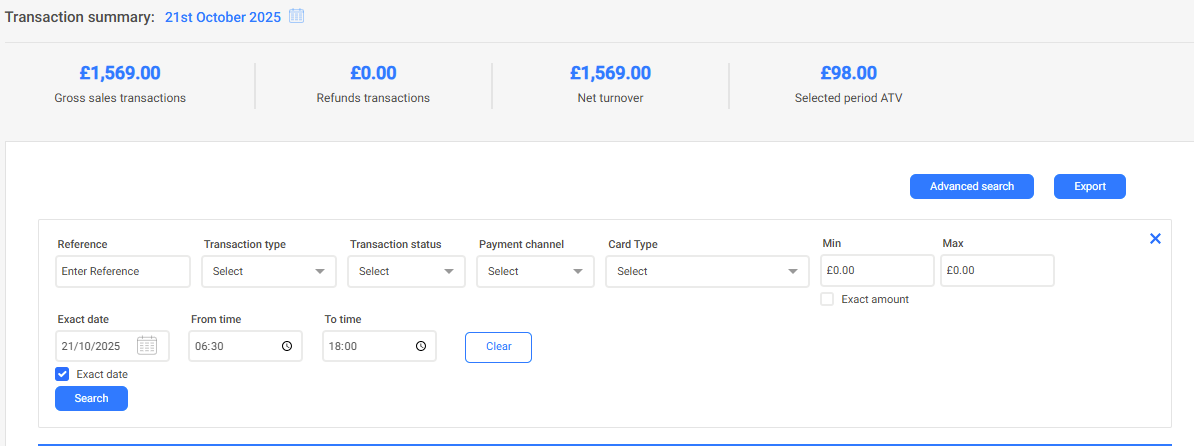
*<span style="text-decoration: underline;">Filtering by time</span>*  
  
If you want to see how many transactions have been taken between a certain time period on a day, you can do this using the filters. In the example below, the user is searching for transactions taken between 6:30am and 6pm on 21st October. Click the clock icon in the time field to select the time rather than typing the time to ensure the filter works.   
  
![image.png](https://verofy-2-knowledge-base-public.s3.amazonaws.com/uploads/images/gallery/2025-10/scaled-1680-/T7aimage.png)

If you need to export your filtered transactions, click **[here](https://verofy.support/books/navigating-verofy-cloud/page/exporting-transaction-data)** to see how you can do this.