# Update your bank details
To update your bank details in Verofy® Cloud, **[log in ](https://verofy.support/books/access-verofy-cloud/page/logging-into-verofy-cloud)**and head to the first initial of your name in a circle at the top right of the screen - this is the user profile section.
*Remember, the account must be a valid account for the entity of your business. If you need to update your account to a different entity - for example - you're a sole trader looking to update to a Limited Company bank account, please contact the Verofy Support team on 0330 460 4672, via the Message centre in App/Cloud or email us at for further assistance.*
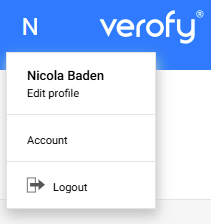
From here, select the **Account** option. You'll see all your business information here, and you can scroll to locate the Bank details section or select **Trading information** on the list on the left hand side of your screen.
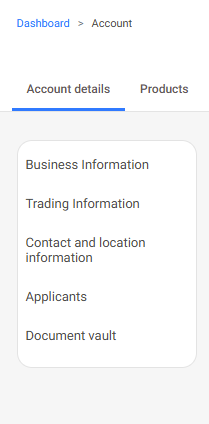
Once you locate the Bank details section, select the **Add a new bank account** button at the top right of the section to update your bank details.

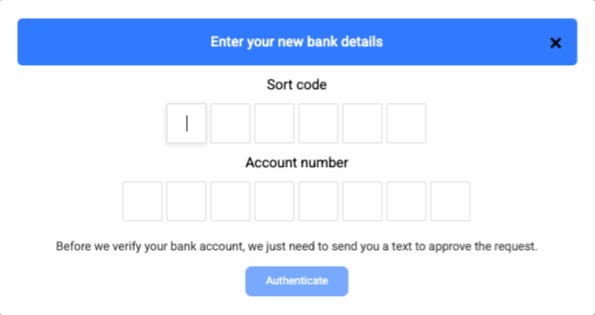
You'll need to enter the sort code and account number of the new bank account. Press **Authenticate** to validate the new details being entered.
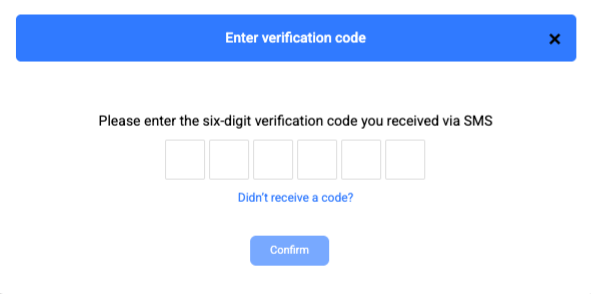
Once entered, you'll receive a text with a verification code. Enter this on the screen in Verofy® Cloud.
The system will then validate the bank details entered, this can take up to 30 seconds. If verification is successful, you'll see the confirmation on screen. You'll be asked to add a label for this new bank account. Once you've entered the label, press **Next**.

Once your new bank details have successfully validated, you'll see a pop up asking you to select which bank account you want to receive settlements to. Select **Use this account** on the account you wish to use.
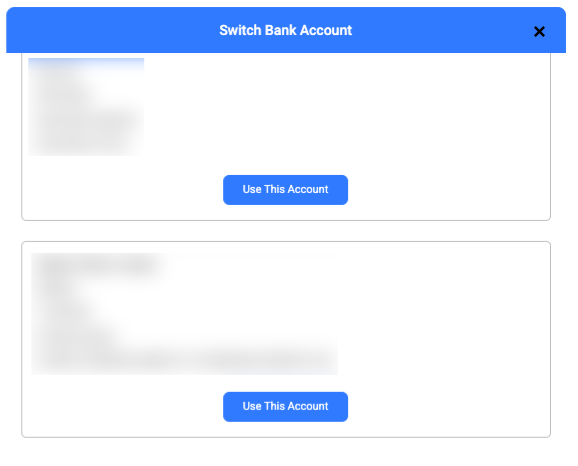
Once you've selected the new account to be used, you'll see a confirmation on the screen to let you know if the details have been updated successfully. This means future settlements will be paid into this new account!

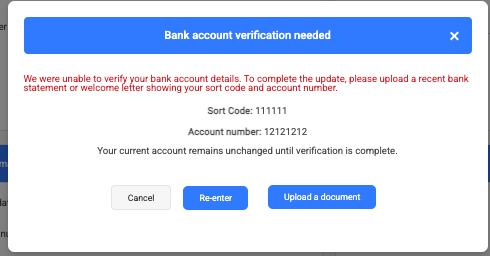
If the details can't be validated automatically, you'll see the below message. If the bank account you entered is correct, upload a proof of bank document to help us verify the account details. Once submitted, this will be reviewed by the Verofy Support team and we'll get in touch if anything further is required. You'll receive a notification to confirm if the change of bank request has been successful or not.
[](https://verofy-2-knowledge-base-public.s3.amazonaws.com/uploads/images/gallery/2025-07/screenshot-2025-07-24-at-10-59-29.png)