# Logging into your Verofy® Move

This page shows you how to login to the Verofy® Move. Contact us on 0330 460 4672 if you can't find your login details, they will have been sent to you via email.

1. When your Verofy® Move arrives, you'll turn it on and be greeted by the login screen. To get started, select the **Verofy Plus** app on screen.  
      
    ![](https://verofy-2-knowledge-base-public.s3.amazonaws.com/uploads/images/gallery/2025-10/embedded-image-a5ijmkhg.png)
2. Enter your User ID and Password.   
      
    ![](https://verofy-2-knowledge-base-public.s3.amazonaws.com/uploads/images/gallery/2025-10/embedded-image-fresxet4.png)
    
    <p class="callout info">We recommend changing your password as soon as you've logged in to maximise security. For instructions on how to change your password, visit the **[Changing your password](https://verofy.support/books/logging-in/page/changing-your-password)** page. </p>
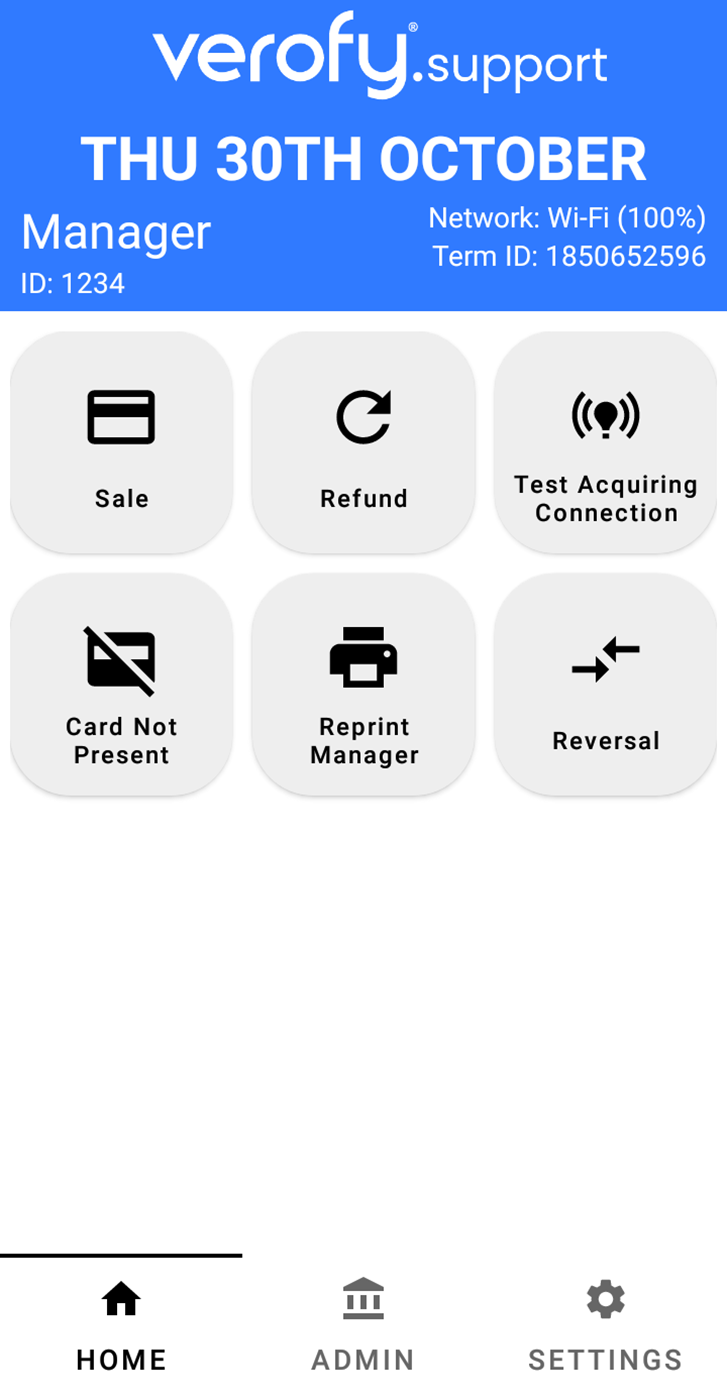
3. Once you've entered the User ID and Password, you'll see the Home screen.   
      
    ![](https://verofy-2-knowledge-base-public.s3.amazonaws.com/uploads/images/gallery/2025-10/embedded-image-k2nu72df.png)


    <span style="color: rgb(0, 0, 0);">That's it! You've logged in.   
      
    Your Verofy® Move comes with a SIM card as standard so you can start transacting straight away. If you need to connect to WiFi, click <span style="color: rgb(48, 122, 255);">**[here](https://verofy.support/books/verofy-move-setup/page/connecting-to-wi-fi).** </span></span>