Please note - the **WiFi Settings** option you'll need might be situated in a different place to the below guide if you've already logged into your Verofy® Move.
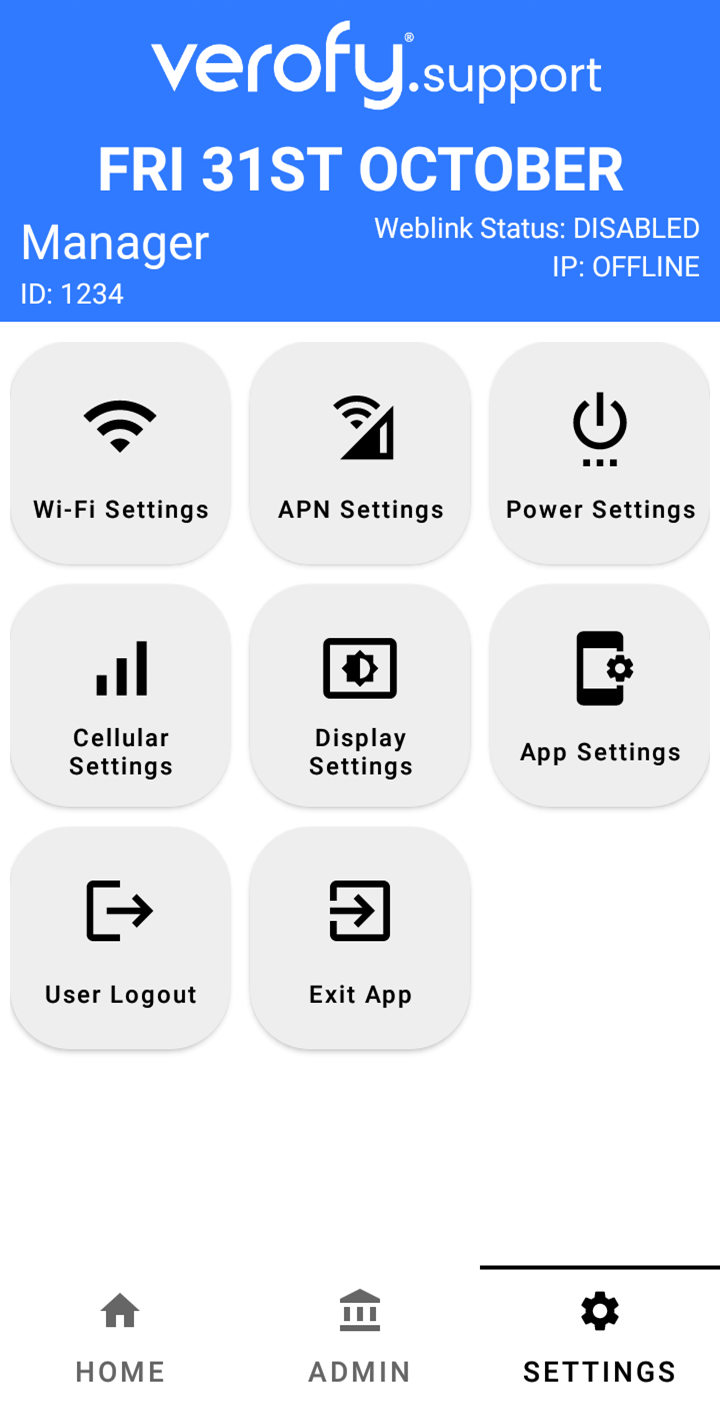 2. You'll see a list of available WiFi networks with the one you're currently connected to at the top. 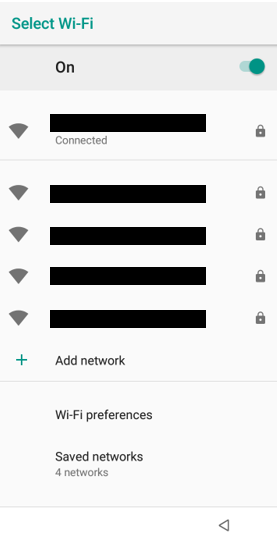 3. To disable the WiFi connection from the Verofy® Move, you simply need to toggle the WiFi off using the toggle button at the top right of the screen. You'll then see the screen below. If you need to re-enable the WiFi connection, just toggle the switch back on and the list of available networks will show. 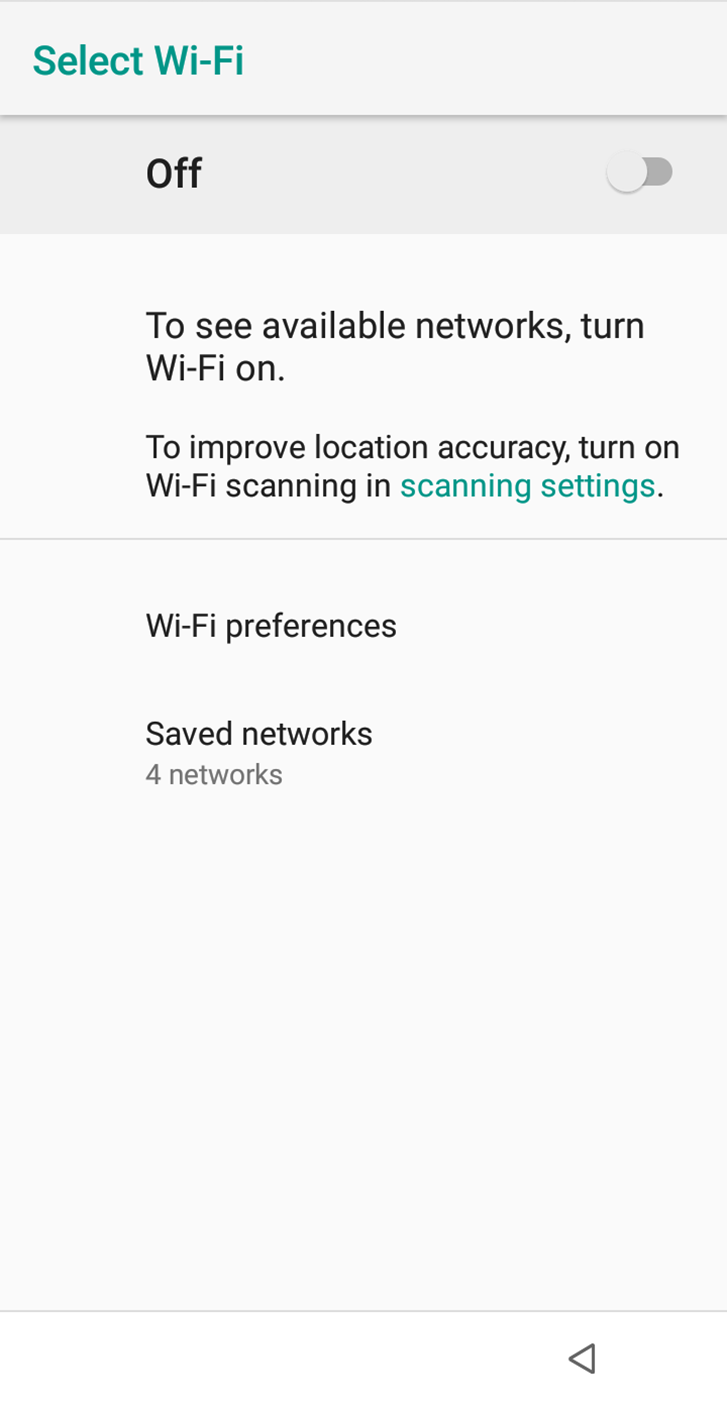 4\. To get back to the main screen, press the small triangle in the bottom right corner of the screen. That's it. You've successfully disconnected the terminal from the WiFi network.