# Removing/forgetting a saved network

This page talks you through removing a saved WiFi network from your Verofy® Move terminal.

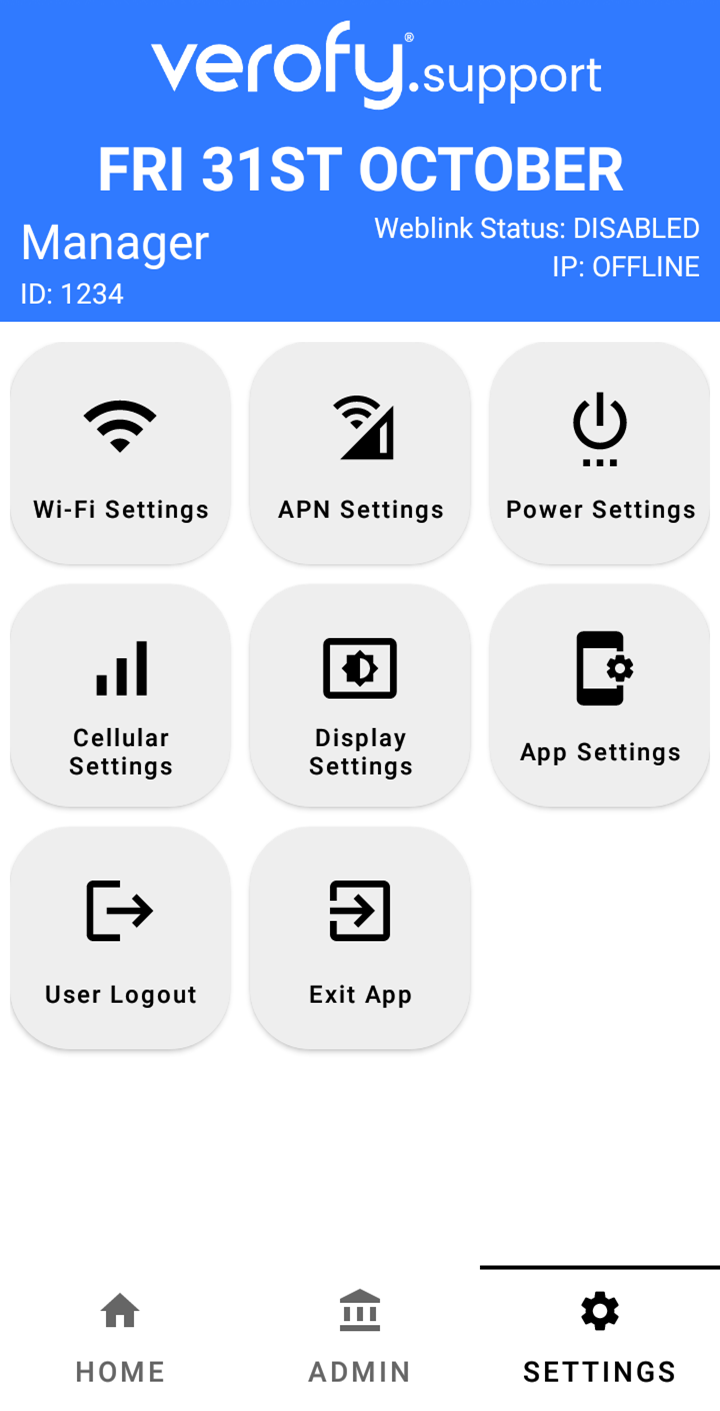
1. Head to the **Settings** menu from the start up screen and find the WiFi Settings option.  
      
    <p class="callout info">Please note - the **WiFi Settings** option you'll need might be situated in a different place to the below guide if you've already logged into your Verofy® Move. </p>
    
      
    ![](https://verofy-2-knowledge-base-public.s3.amazonaws.com/uploads/images/gallery/2025-10/embedded-image-tigril9x.png)
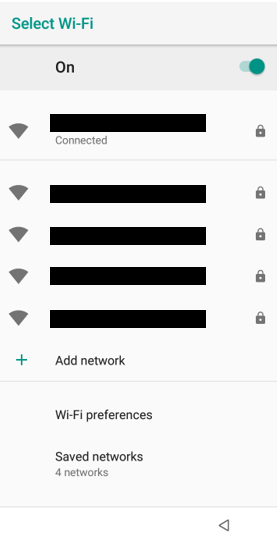
2. You'll see a list of available WiFi networks with the one you're currently connected to at the top.   
      
    ![image.png](https://verofy-2-knowledge-base-public.s3.amazonaws.com/uploads/images/gallery/2025-10/scaled-1680-/s0Pimage.png)
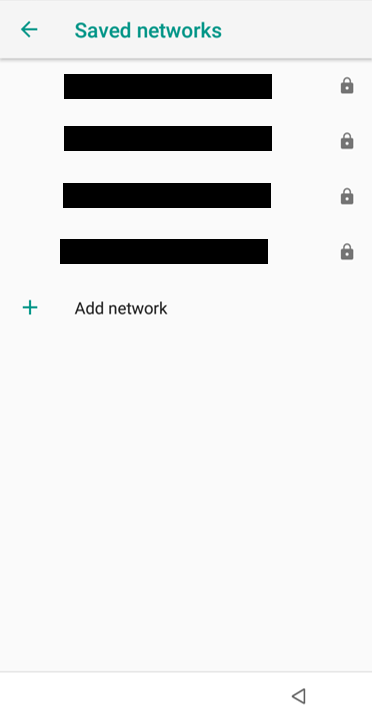
3. Scroll to the bottom of the list/page and you'll see an option called **Saved networks.** Select this option.   
      
    ![image.png](https://verofy-2-knowledge-base-public.s3.amazonaws.com/uploads/images/gallery/2025-11/scaled-1680-/KsKimage.png)
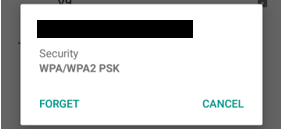
4. You'll then see a list of the saved networks on the Verofy® Move terminal. Select the one you want to forget and you'll see this screen. Press 'FORGET' to forget the network.   
      
    ![image.png](https://verofy-2-knowledge-base-public.s3.amazonaws.com/uploads/images/gallery/2025-10/scaled-1680-/xtXimage.png)

 5. Press the green arrow at the top left of the screen to return to the **Settings** menu.

<span style="color: rgb(0, 0, 0);">That's it! You've successfully forgotten the saved network.</span>