
Taking integrated payments remotely (when the customer is not present)
Before you can take integrated payments, make sure your Verofy® Move shows as ready for payment on the integrated home screen.
If you're not sure how to get connected, you can find out below.
Connect via network
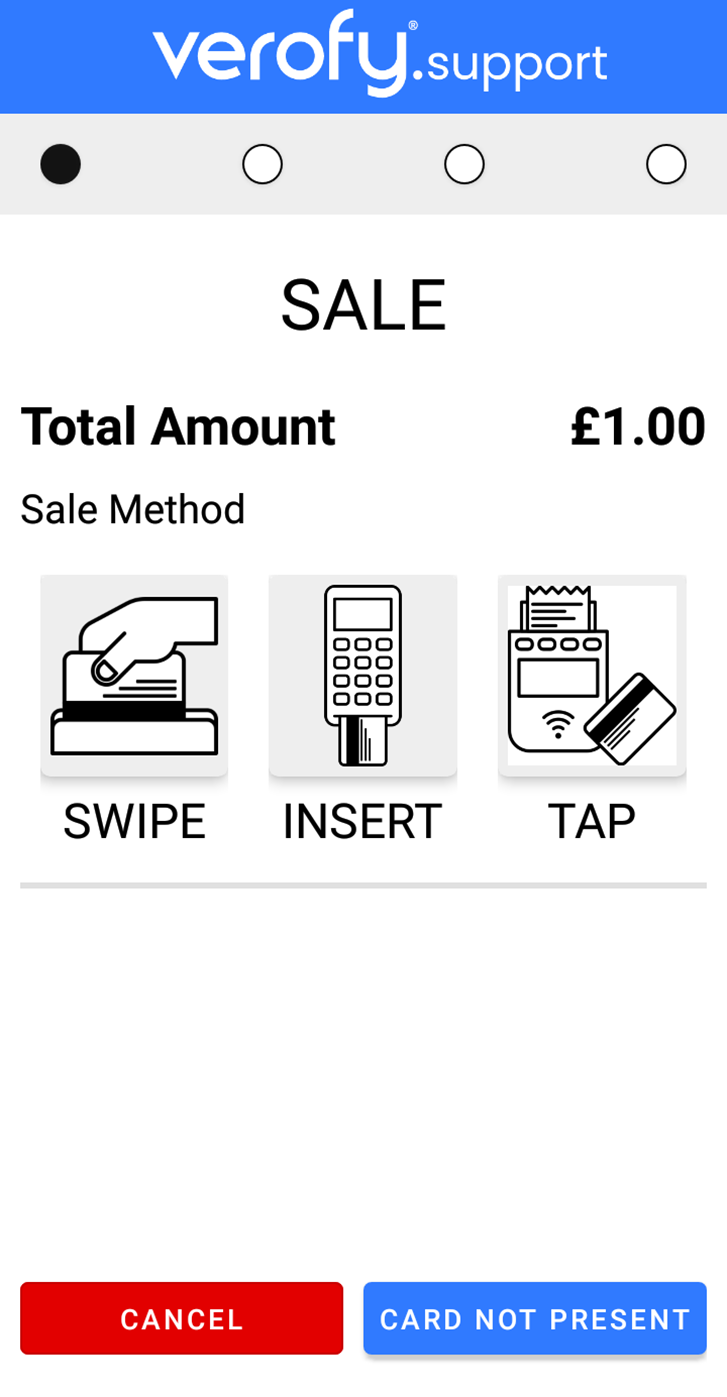
1. The payment will be sent to your Verofy® Move from the till system. From here, select the Card Not Present option.
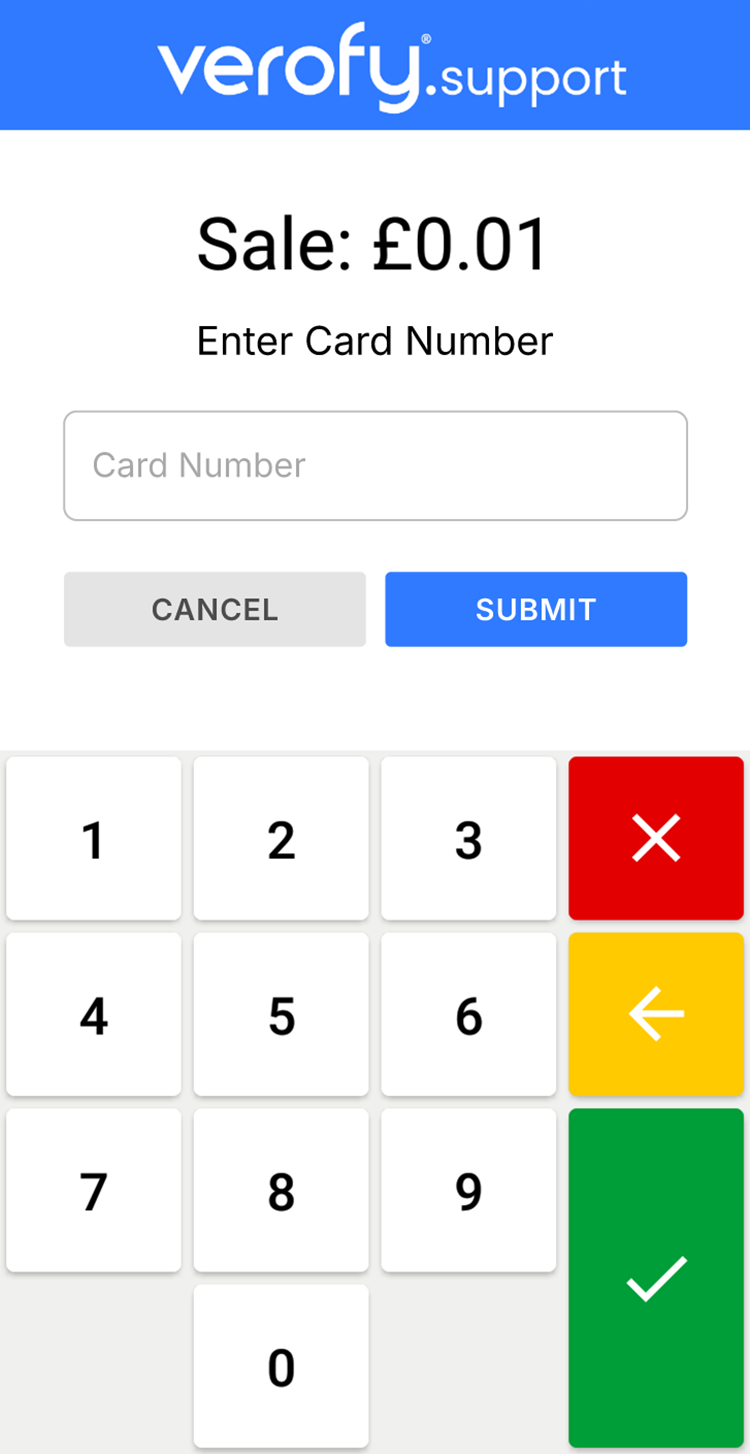
2. You'll then need to enter the long 16 digit card number (the customer will need to confirm this to you). Once entered, press submit.
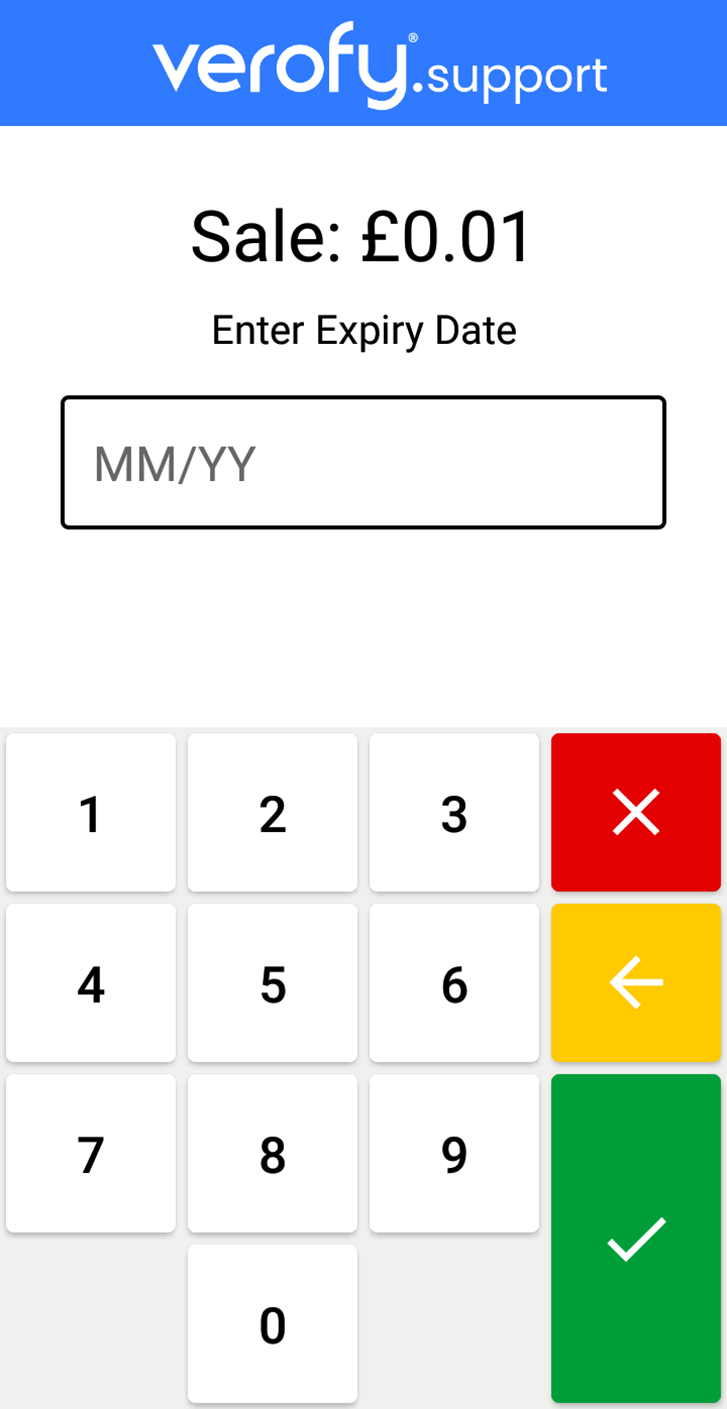
3. Next, you'll need to enter the expiry date of the card, Once you've done this, press the green tick.
4. You'll then need to enter the 3 digit security code (CVV) from the back of the card. The customer will need to confirm this to you. Once entered, press submit.

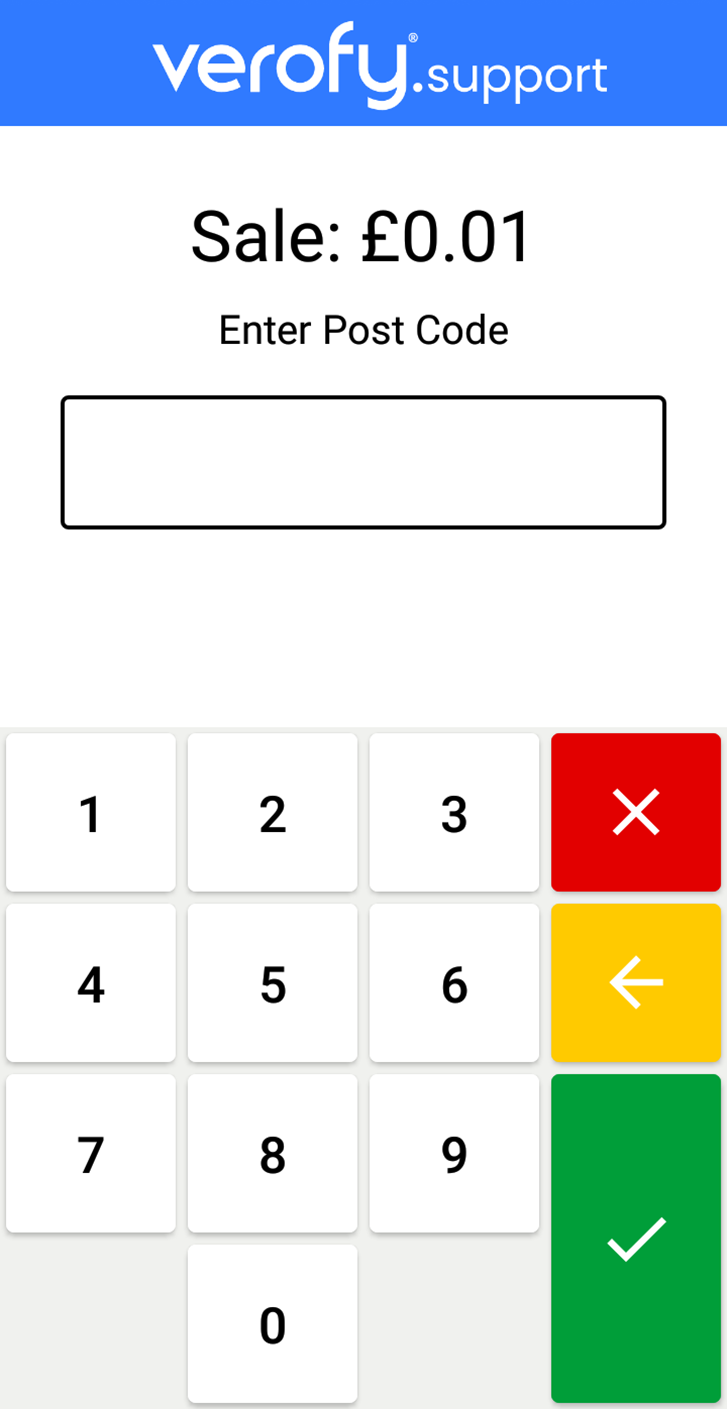
5. Next, you'll need to enter the numbers only from the post code that the card is registered to. The customer should be able to provide this information to you. Once entered, press the green tick.
6. You'll then need to enter the house name or number that the card is registered to. The customer should be able to provide this information to you. Once entered, press next.
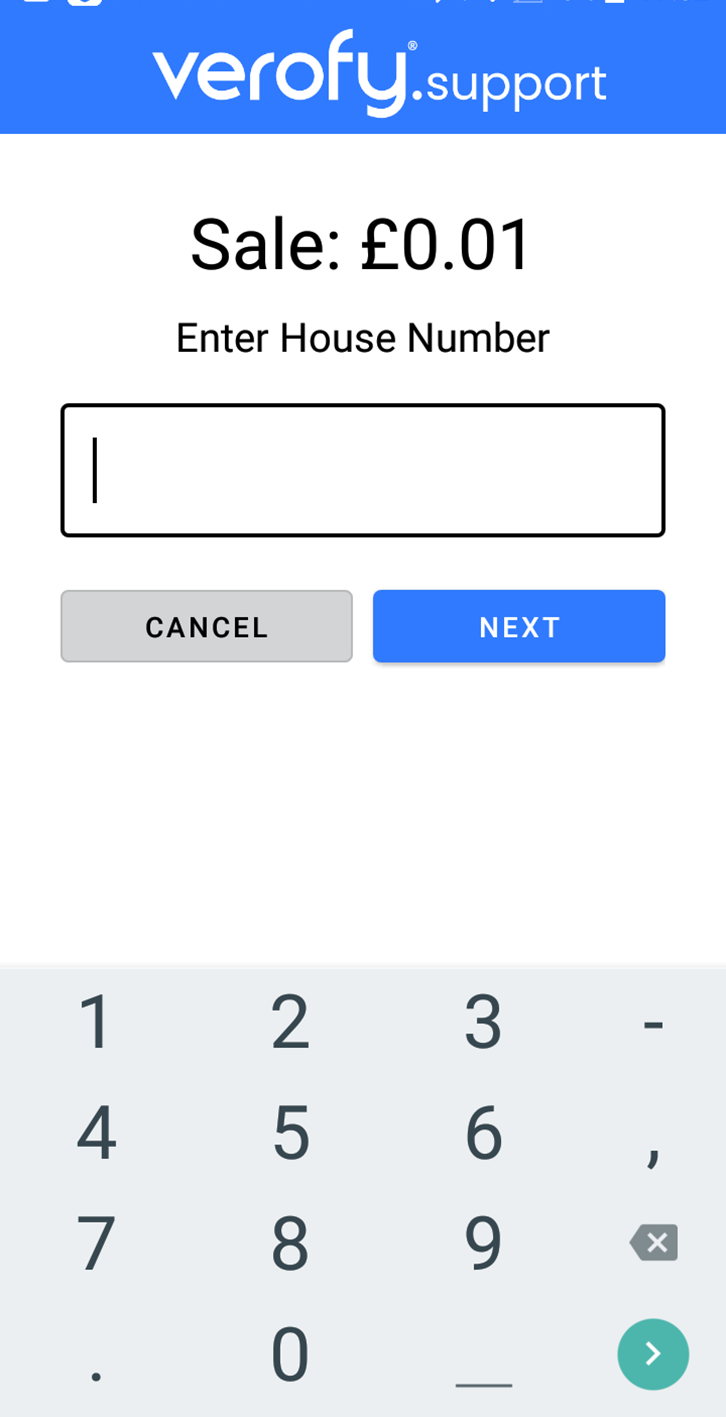
7. Next, you'll be asked if you wish to add an Optional Reference to the transaction. If you don't want to add a reference, press submit.

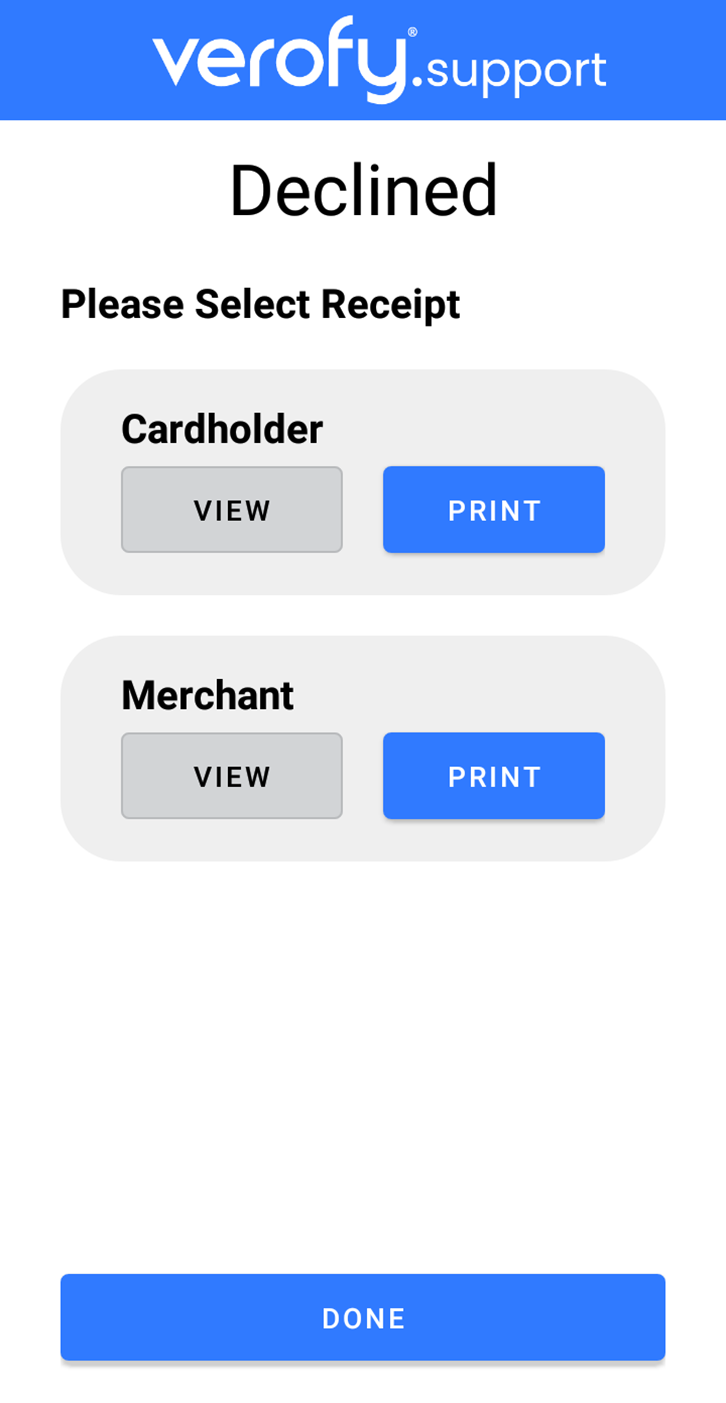
8. The transaction will then process, and the terminal will show the 'Success' screen if the transaction attempt is successful. If the payment is unsuccessful, the terminal will show the 'Decline' screen - this means the transaction has not completed successfully.


9. The terminal will then print the receipt copies unless you have terminal printing disabled in integrated mode. If you have Print to screen enabled, you'll be prompted to view/print the receipts. You'll need to press Done / Continue to complete the transaction fully on the Verofy® Move. 


10. Your till system should recognise that the transaction is completed, and your Verofy® Move should return to the integrated home screen, ready for the next transaction.
