Verofy® App: Message centre
If you need us, we're happy to help.
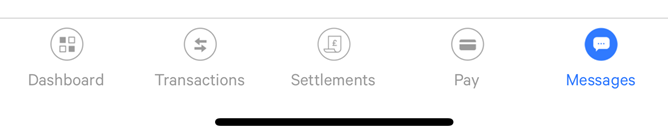
- Login to the Verofy® App and select the Messages option in the Verofy® App.
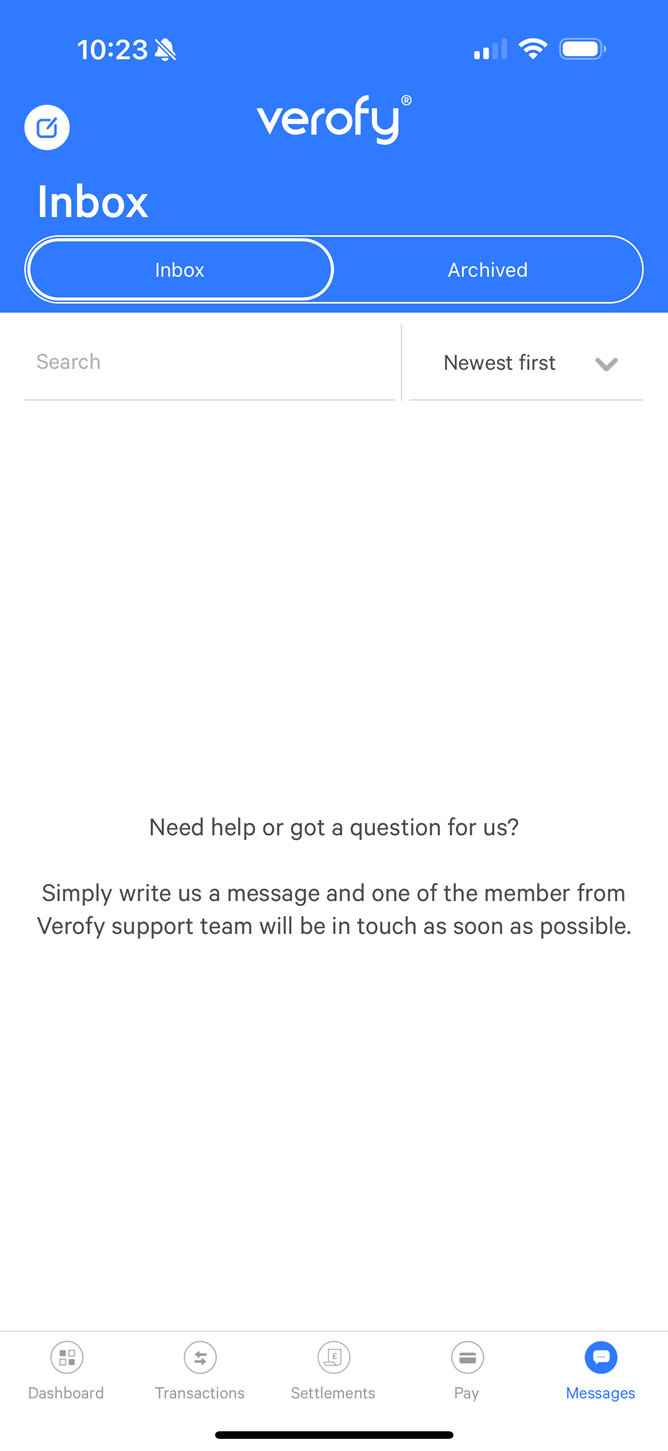
- You can send us a message by pressing the New message button (the square and pencil in the white circle at the top left of the screen).
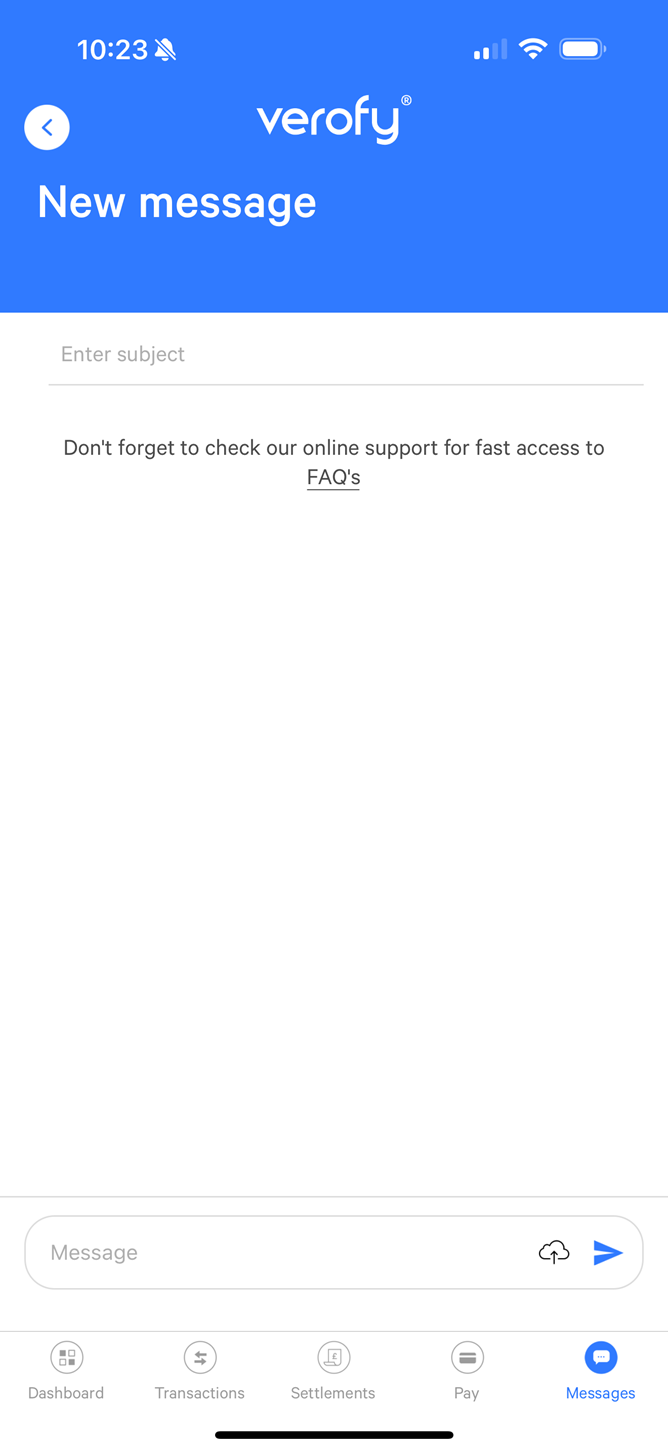
- Create your message by adding the subject then writing your message. You'll also be able to upload attachments if you need to by pressing the cloud button. Once you're ready, send the message by pressing the blue envelope.
- We'll receive your message, and work on it as soon as we can. If you send us a message outside of our opening hours, you'll be notified and we'll respond as soon as we can.
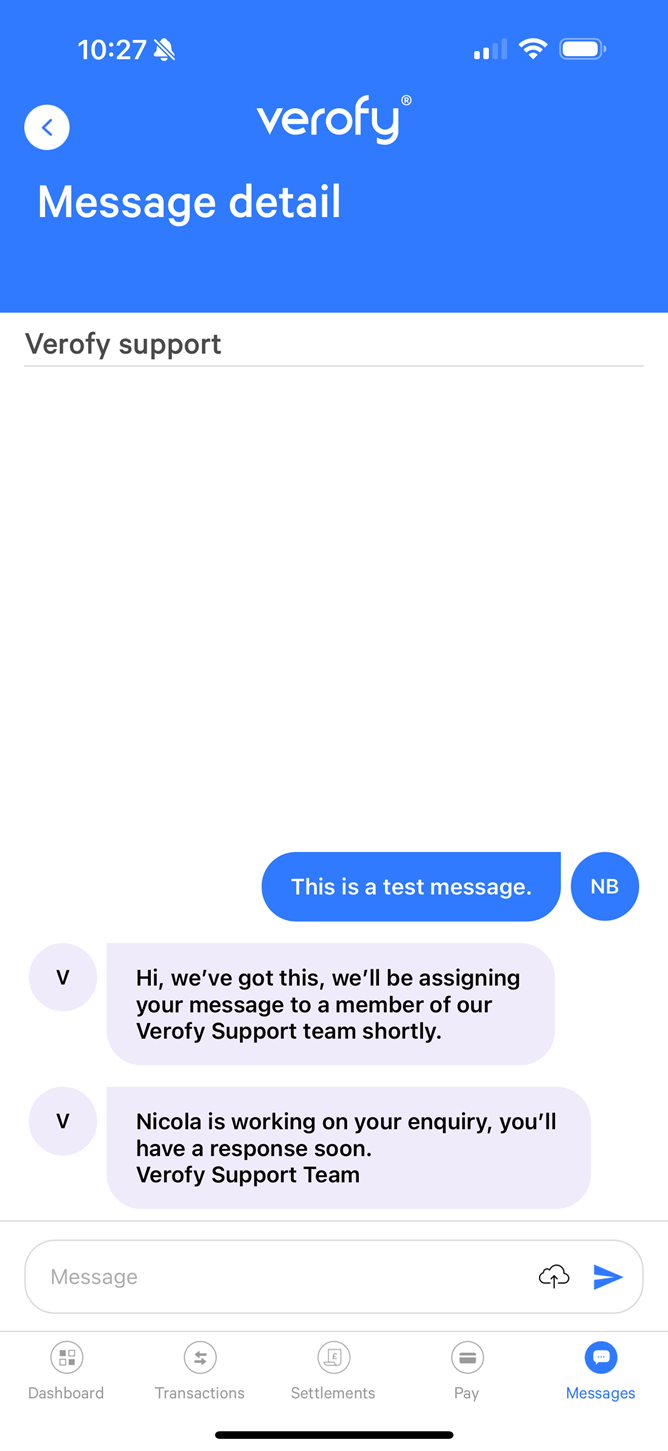
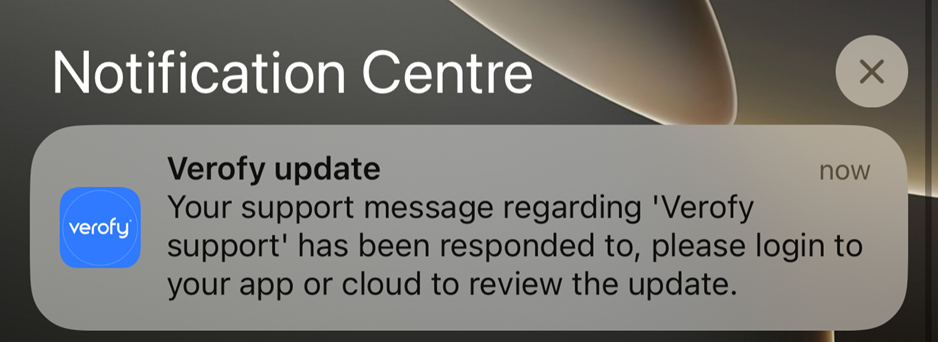
- We'll send you a push notifications when there's an update, so make sure you have these enabled!
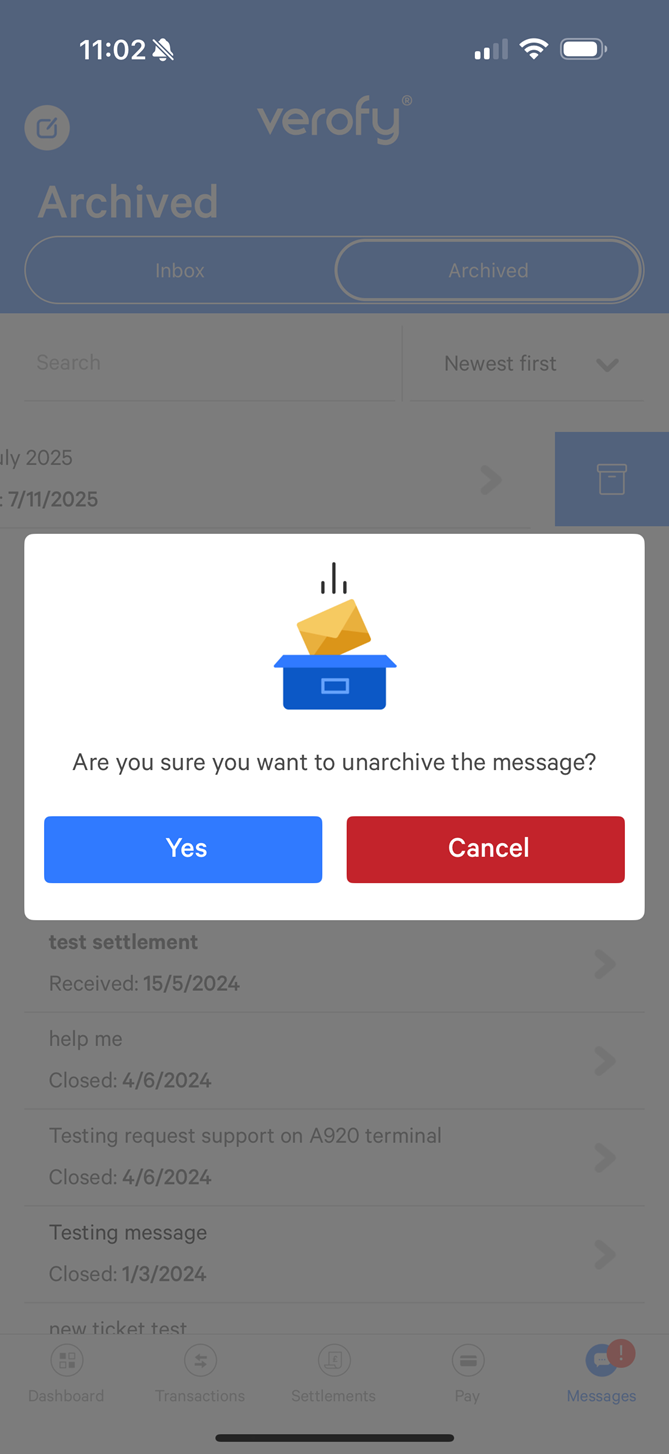
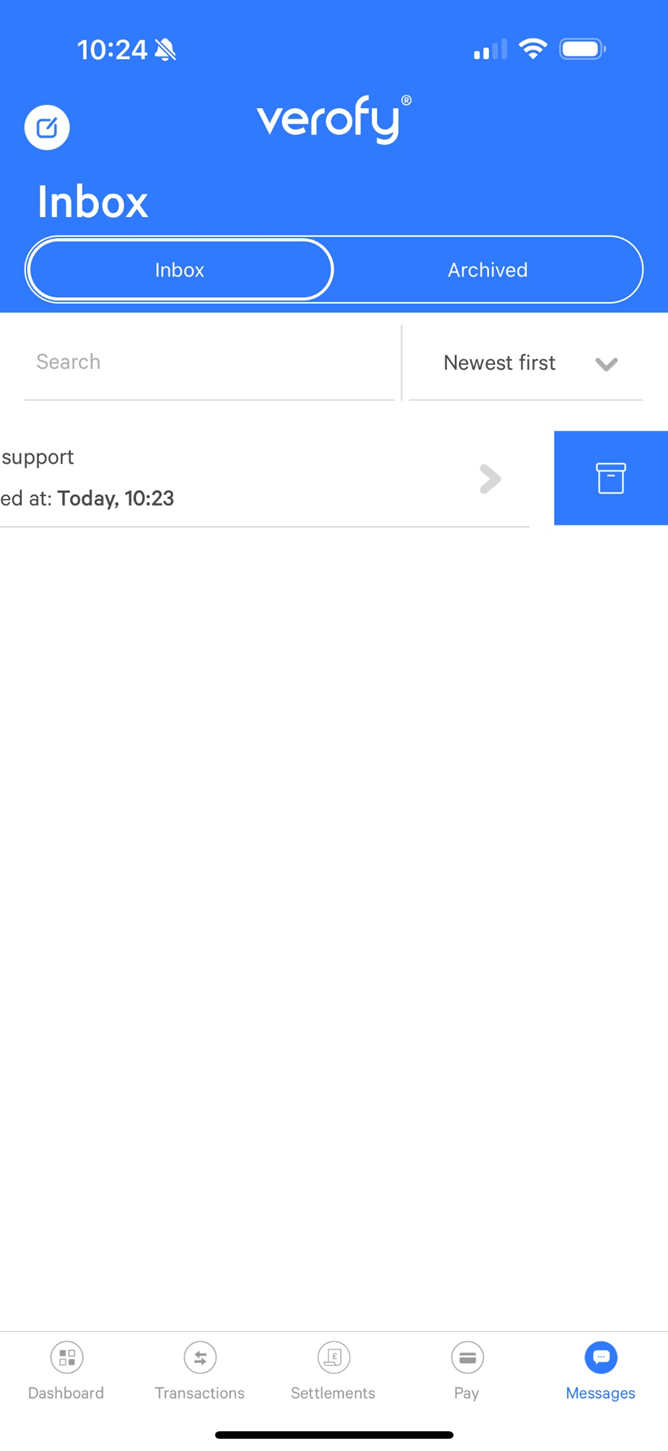
- When you no longer need the message, you can archive it by swiping left and selecting the blue archive archive folder option. If you need to see your archived messages, select the Archived tab.
- If you need to unarchive a message, from the Achived list swipe left and select the blue archive folder option. You'll see a confirmation pop up message to make sure you want to unarchive the message, if you press yes, this will move the message back to your inbox.